 Convertitore di musica Deezer

 Mac
Mac Windows
Parte 1. Per iniziare con TunesFun Convertitore di musica Deezer
Passo 1. Installare TunesFun Convertitore di musica Deezer
Scarica e installa l'ultima versione di TunesFun Installa Deezer Music Converter sul tuo computer. Una volta completata l'installazione, avvia il programma per iniziare.
Passaggio 2. Attiva TunesFun Convertitore di musica Deezer
Dopo aver avviato il software, è possibile scegliere se continuare con la versione di prova gratuita o attivare la versione completa con una chiave di licenza.
Per gli utenti della prova gratuita: Se non disponi di una chiave di licenza, puoi avviare direttamente il programma ed esplorare le sue funzionalità disponibili. Con la versione di prova gratuita, puoi convertire solo 3 brani completi da Deezer. Per convertire più brani senza le limitazioni di Apple, dovrai acquistare la licenza.Vai TunesFun Online StorePuoi contattare il nostro servizio clienti per verificare le ultime promozioni e offerte speciali.
Per gli utenti a pagamento: se hai già acquistato una licenza, attiva il software per sbloccare la versione completa. Fai clic sull'icona del profilo nell'angolo in basso a sinistra. Quindi seleziona "Accedi con licenza". Inserisci l'indirizzo email associato al tuo acquisto e il codice di registrazione/chiave di licenza. Fai clic su Accedi per completare l'attivazione. Una volta attivato, potrai accedere alle funzionalità incluse nella tua licenza.
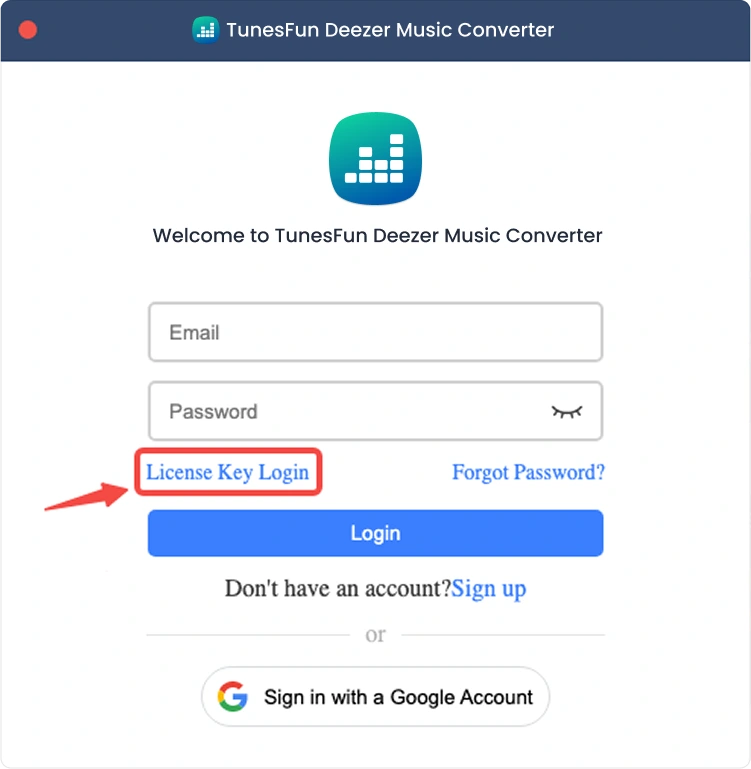
Nota: assicurati di inserire lo stesso indirizzo email associato al tuo acquisto e di utilizzare il codice di registrazione corretto. Potrebbe essere necessaria una connessione Internet attiva per la verifica.
Parte 2. Come aggiungere musica per la conversione
Passaggio 1. Accedi a Deezer Music
TunesFun Deezer Music Converter integra il lettore web ufficiale di Deezer. Accedi prima al tuo account Deezer per sfogliare la tua libreria musicale.
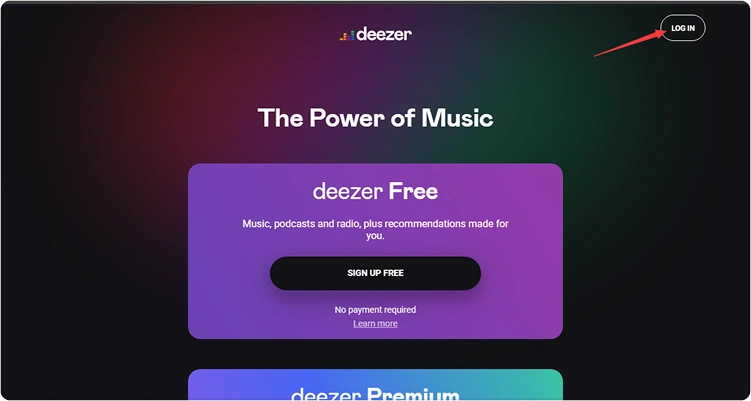
Passaggio 2. Aggiungi musica al programma
Dopo aver effettuato l'accesso al tuo account musicale, puoi sfogliare la libreria musicale e selezionare i contenuti che desideri convertire. Fai clic su "Aggiungi alla conversione" accanto a un brano o a una playlist per aggiungere la musica selezionata all'elenco di conversione. Puoi anche trascinare e rilasciare brani, playlist o altri contenuti supportati sull'icona "+" fluttuante sul lato destro dell'interfaccia.
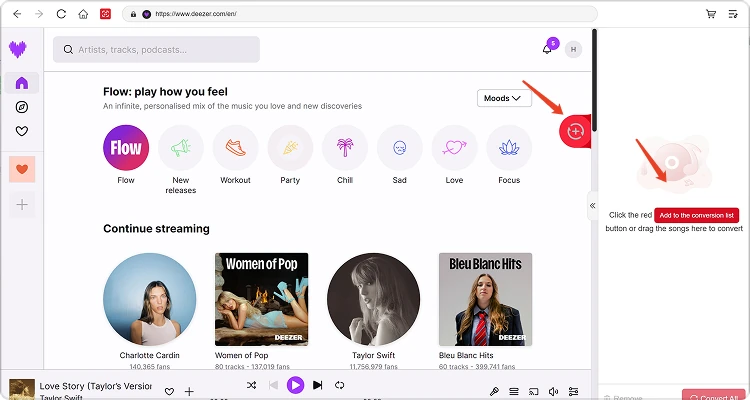
Disponibilità dei contenuti: la disponibilità di qualsiasi brano o album dipende interamente dallo stato dell'abbonamento e dalle autorizzazioni regionali dell'account che utilizzi.
Passo 3. Seleziona il formato di output
Dopo aver aggiunto la musica all'elenco di conversione e configurato le impostazioni di output preferite, seleziona il formato di output desiderato tra le opzioni disponibili. Puoi anche regolare la cartella di destinazione e altri parametri audio, se necessario.
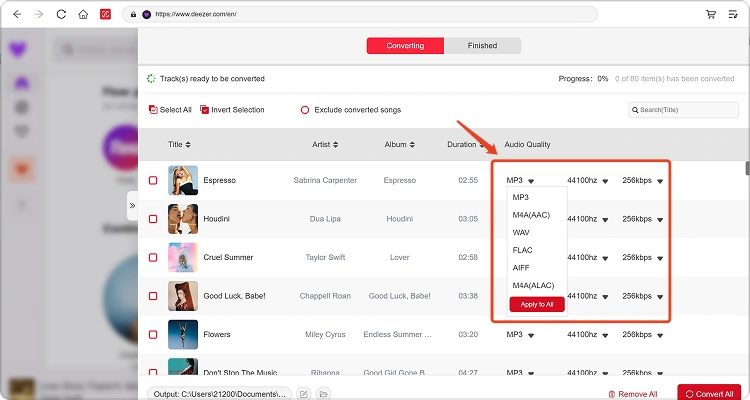
Passaggio 4. Inizia la conversione della musica
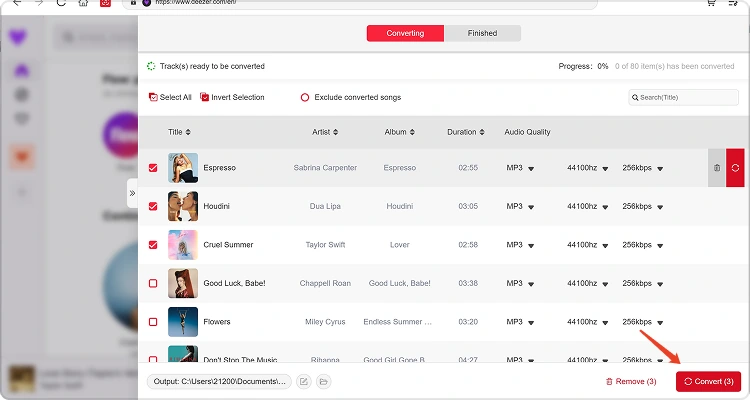
Una volta che tutto è pronto, fai clic sul pulsante Converti ora accanto a un singolo elemento oppure su Converti tutto per elaborare tutta la musica selezionata contemporaneamente. L'avanzamento della conversione verrà visualizzato durante il processo. Attendi il completamento delle operazioni selezionate.
Passaggio 5. Controlla la musica convertita
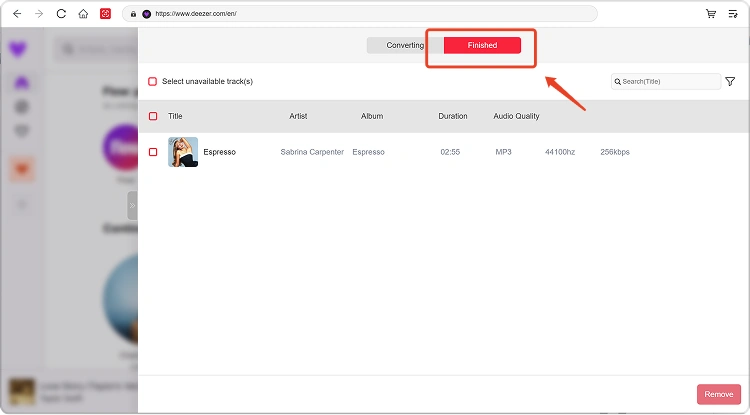
Al termine della conversione, vai alla sezione Libreria locale per visualizzare i file convertiti. Fai clic su Visualizza file di output per aprire la cartella in cui è stata salvata la musica convertita. A questo punto potrai riprodurre, gestire o trasferire i file secondo necessità.
Parte 3. Cosa devo fare se il download non riesce?
Se riscontri un problema durante il download o la conversione di musica, prova quanto segue:
- Assicurati di aver effettuato l'accesso alla piattaforma musicale selezionata.
- Verifica la tua connessione Internet e riprova.
- Restart TunesFun Utilizza qualsiasi convertitore musicale e riprova il download.
- Assicurati di utilizzare la versione più recente del software.
Se il problema persiste, si prega di inviare il file di registro del software:
- Fai clic sul menu in alto a destra del programma e seleziona "Invia feedback".
- Descrivi brevemente il problema riscontrato nella casella di testo.
- Infine, prima di inviare, spuntate la casella "Allega il file di registro".
Parte 4. Come preimpostare le impostazioni di uscita e i parametri audio
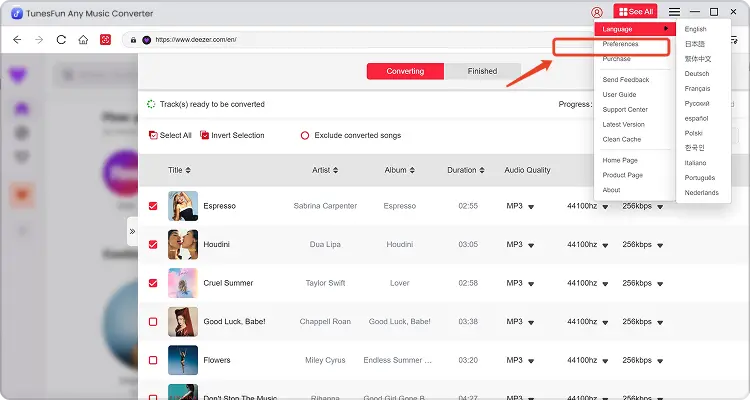
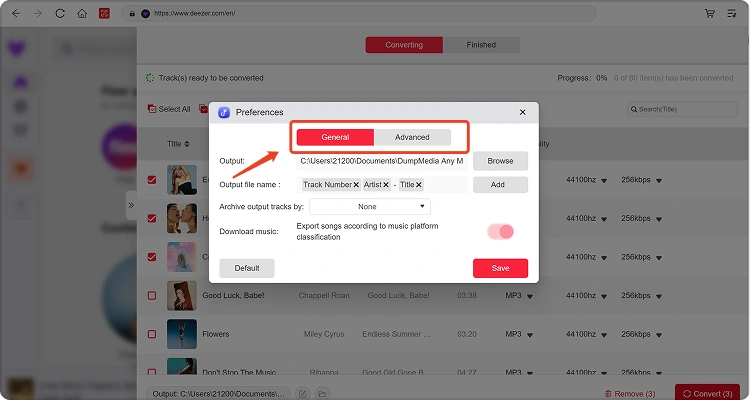
TunesFun Any Music Converter consente di personalizzare le impostazioni di download e i parametri audio per controllare il processo di conversione e la qualità dell'output. È possibile regolare queste impostazioni direttamente dall'elenco di conversione prima di avviare la conversione, oppure accedere a Menu > Preferenze per preimpostare le impostazioni preferite in anticipo.
Lingue disponibili
Seleziona la lingua che preferisci per l'interfaccia del software.
Impostazioni generali
- Aspetto — Personalizza l'aspetto dell'interfaccia del software.
- Cartella di output: seleziona la posizione in cui verranno salvati i file convertiti.
- Modello di denominazione automatica: personalizza il formato di denominazione dei file convertiti.
- Archivia per — Scegli come organizzare i file musicali convertiti.
- Dopo la conversione: scegli cosa succede al termine della conversione.
- Salva musica: abilita o disabilita il salvataggio dei file musicali convertiti.
- Testi — Abilita o disabilita il salvataggio dei testi insieme alla musica convertita.
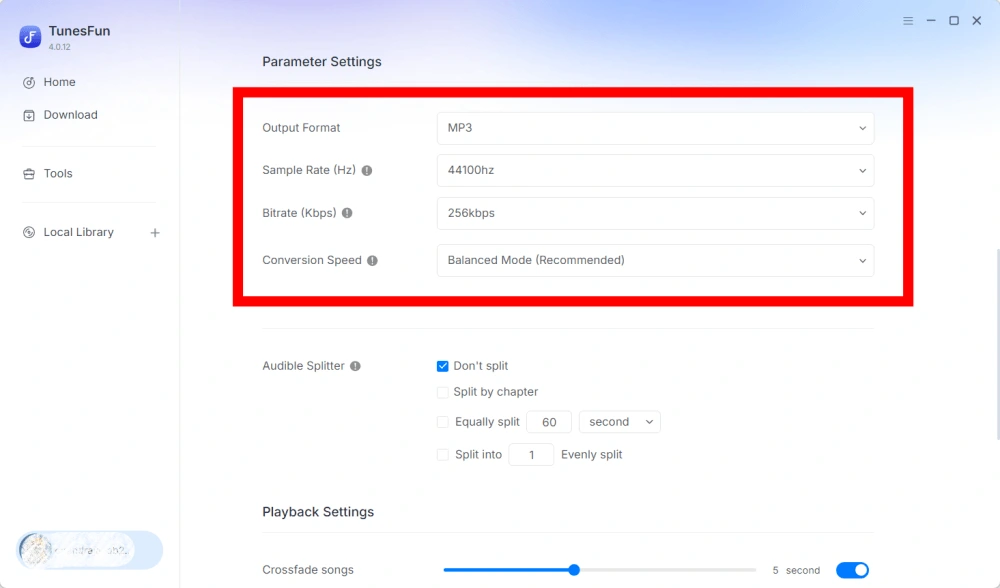
Impostazioni parametri
- Formato di output: selezionare il formato di output audio desiderato.
- Frequenza di campionamento (Hz) — Imposta la frequenza di campionamento audio.
- Bitrate (Kbps) — Regola il bitrate audio per controllare la qualità dell'output.
- Velocità di conversione: regola la velocità di conversione in base alle tue esigenze.
- Audible Splitter — Divide gli audiolibri Audible in sezioni più piccole.
Impostazioni di riproduzione
Dissolvenza incrociata tra brani: consente una transizione fluida tra i brani durante la riproduzione.
Impostazioni di rete
- Download simultanei: imposta il numero di file musicali da scaricare contemporaneamente.
- Proxy — Configura le impostazioni proxy per le connessioni di rete.
altre impostazioni
Pop-up: abilita o disabilita le notifiche pop-up.
Parte 5. Come gestire il tuo TunesFun Account
TunesFun Any Music Converter ti permette di gestire il tuo account direttamente all'interno del software.
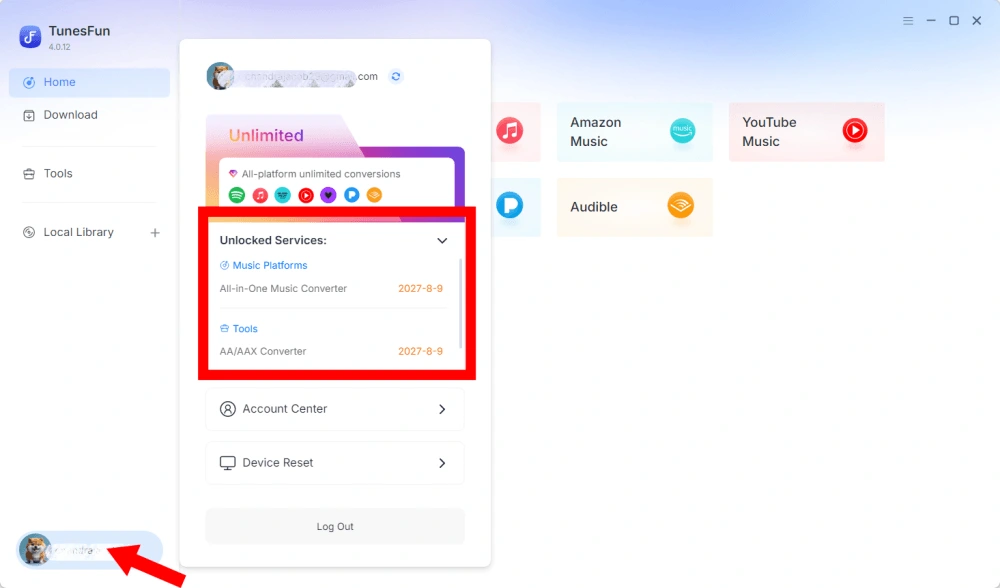
Visualizza i servizi sbloccati
Vai alla sezione Account per visualizzare i servizi e le funzionalità attualmente sbloccati con il tuo TunesFun account. Questo ti consente di verificare lo stato del tuo account e i prodotti o servizi disponibili con la tua licenza.
Accedi al Centro account
Fai clic sull'icona del profilo > "Centro account" per accedere al TunesFun Centro assistenza, dove puoi gestire il tuo account e le relative informazioni.
- Informazioni personali: aggiorna il tuo nome utente e fai clic su "modifica" per cambiare la foto del tuo avatar.
- Elimina l'account: una volta eliminato l'account, quest'ultimo e la relativa chiave di licenza verranno immediatamente disattivati e non potranno più essere utilizzati. Prima di eliminare l'account, assicurati di non avere abbonamenti attivi.
- Abbonamento — Visualizza e gestisci i tuoi abbonamenti attuali. Se desideri annullare un abbonamento, fai clic su "Gestisci abbonamento" per metterlo in pausa. Se non riesci ad annullarlo, contatta il servizio clienti.[email protected]).
- Gestisci dispositivi — Se stai passando a un altro dispositivo e desideri utilizzarlo TunesFun Sul nuovo dispositivo, puoi completare facilmente l'operazione. Se non riesci a ripristinarlo, contatta il servizio clienti.
- Fatturazione — Tutti i dettagli dell'ordine sono disponibili qui. Se non riesci a visualizzare la fattura, contatta il servizio clienti.
- Cambia password: imposta la nuova password che preferisci. Se hai dimenticato la password attuale, fai clic su "Dimenticata". Segui le istruzioni visualizzate sullo schermo per reimpostare la password.