 Deezer 音楽変換

 Mac
Mac Windows
パート1. はじめに TunesFun Deezer 音楽変換
ステップ1。 インストール TunesFun Deezer 音楽変換
最新バージョンのダウンロードとインストール TunesFun お使いのコンピューターにDeezer Music Converterをインストールしてください。インストールが完了したら、プログラムを起動して使用を開始してください。
ステップ2.アクティブ化 TunesFun Deezer 音楽変換
ソフトウェアを起動した後、無料トライアルを継続するか、ライセンスキーを使用してフルバージョンをアクティベートするかを選択できます。
無料トライアルユーザー向け: ライセンスキーをお持ちでない場合は、プログラムを直接起動して利用可能な機能を確認できます。無料トライアル版では、Deezerから3曲までしか変換できません。Appleの制限なしにさらに多くのトラックを変換するには、ライセンスを購入する必要があります。に行きます TunesFun オンラインストア最新のキャンペーンや特別オファーについては、カスタマーサポートチームまでお問い合わせください。
有料ユーザー向け:既にライセンスをご購入済みの方は、ソフトウェアをアクティベートしてフルバージョンをご利用ください。左下隅のプロフィールアイコンをクリックし、「ライセンスでログイン」を選択してください。ご購入時に使用したメールアドレスと登録コード/ライセンスキーを入力します。「サインイン」をクリックしてアクティベーションを完了してください。アクティベートが完了すると、ライセンスに含まれる機能をご利用いただけます。
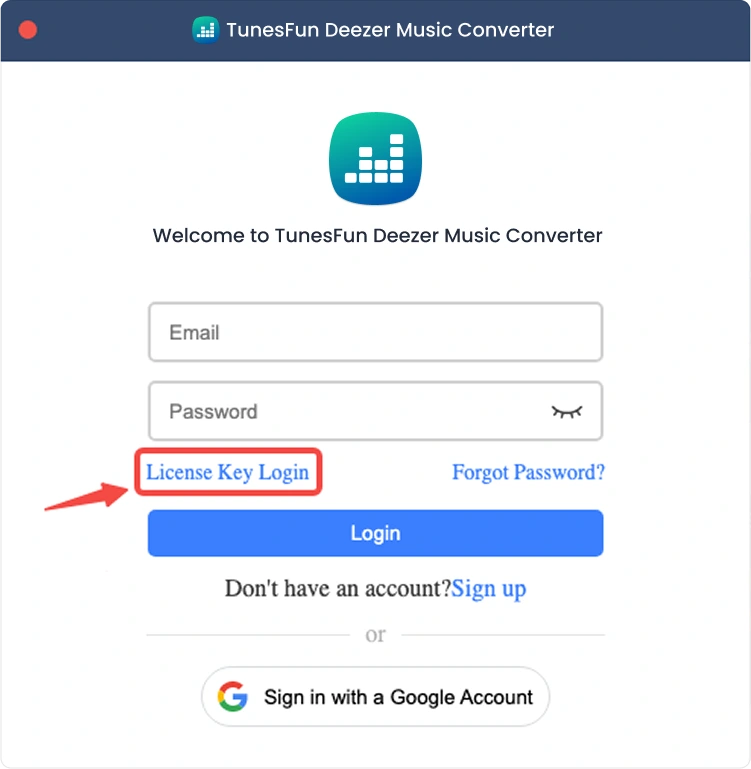
注:ご購入時に使用したメールアドレスと、正しい登録コードを入力してください。認証にはインターネット接続が必要となる場合があります。
パート2. 変換時に音楽を追加する方法
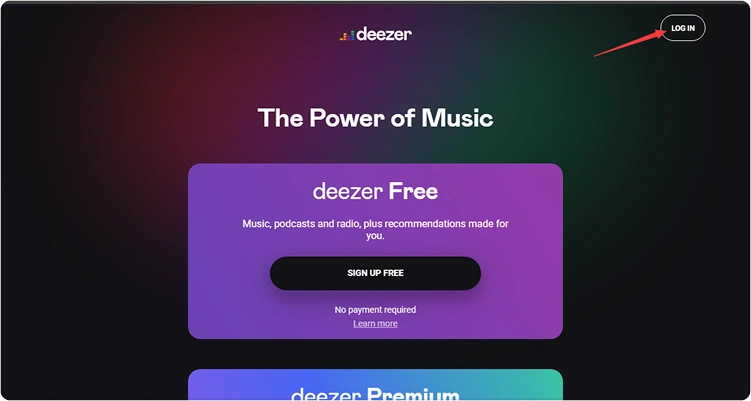
ステップ1. Deezer Musicにサインインする
TunesFun Deezer Music Converterは、公式のDeezerウェブプレーヤーを統合しています。音楽ライブラリを閲覧するには、まずDeezerアカウントにログインしてください。
ステップ2.プログラムに音楽を追加する
音楽アカウントにログイン後、音楽ライブラリを閲覧し、変換したいコンテンツを選択できます。「変換に追加」をクリックすると、選択した音楽が変換リストに追加されます。また、曲、プレイリスト、その他の対応コンテンツを、インターフェース右側のフローティング「+」アイコンにドラッグ&ドロップすることもできます。
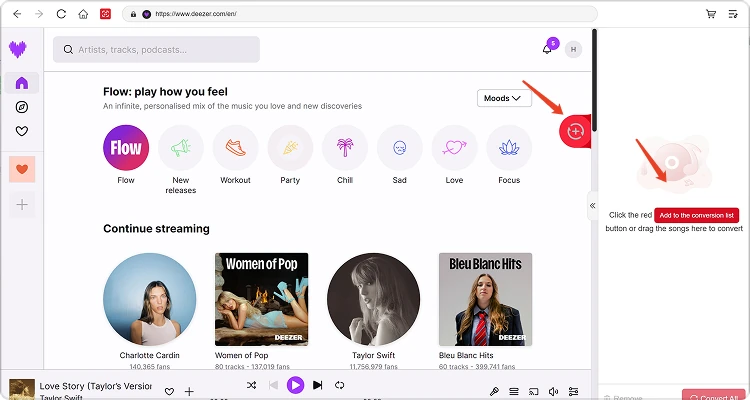
コンテンツの入手可能性:楽曲やアルバムの入手可能性は、ご利用のアカウントの購読状況と地域制限によって完全に異なります。
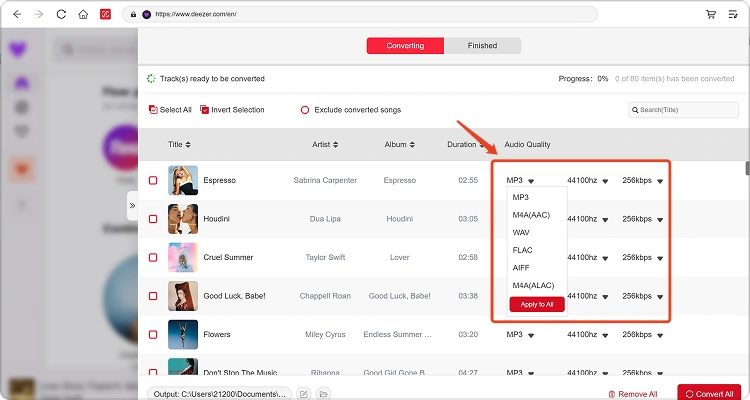
ステップ3。 出力フォーマットを選択する
変換リストに音楽を追加し、希望の出力設定を構成したら、利用可能なオプションから希望の出力形式を選択してください。必要に応じて、出力フォルダやその他のオーディオパラメータを調整することもできます。
ステップ4. 音楽の変換を開始する
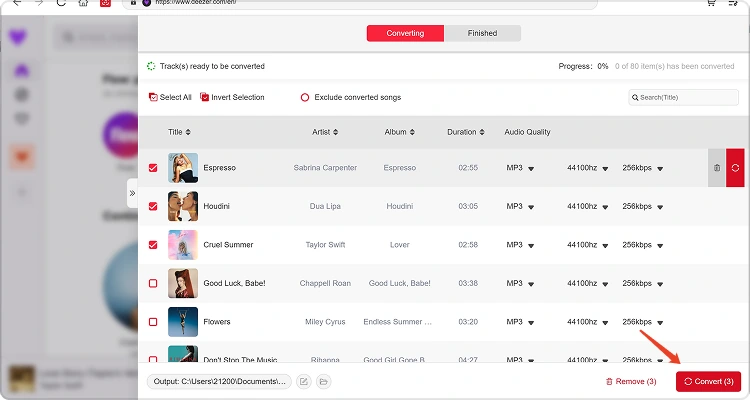
準備が整ったら、個々のアイテムの横にある「今すぐ変換」ボタンをクリックするか、「すべて変換」をクリックして選択したすべての音楽を一度に処理してください。変換の進行状況は処理中に表示されます。選択したタスクが完了するまでお待ちください。
ステップ5. 変換された音楽を確認する
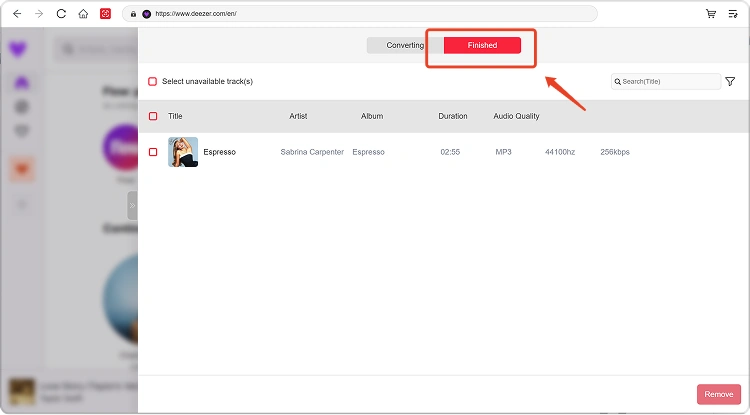
変換が完了したら、「ローカルライブラリ」セクションに移動して変換後のファイルを確認してください。「出力ファイルの表示」をクリックすると、変換後の音楽ファイルが保存されているフォルダが開きます。その後、必要に応じてファイルの再生、管理、転送を行うことができます。
パート3:ダウンロードが失敗した場合の対処法
音楽のダウンロードや変換中に問題が発生した場合は、以下の手順をお試しください。
- 選択した音楽プラットフォームにログインしていることを確認してください。
- インターネット接続を確認して、もう一度お試しください。
- 再起動 TunesFun Any Music Converterを使ってダウンロードをやり直してください。
- ソフトウェアの最新バージョンを使用していることを確認してください。
問題が解決しない場合は、ソフトウェアのログファイルを送信してください。
- プログラムの右上にあるメニューをクリックし、「フィードバックを送信」を選択してください。
- テキストボックスに、発生した問題を簡潔に記述してください。
- 最後に、送信前に「ログファイルを添付する」のチェックボックスにチェックを入れてください。
パート4:出力設定とオーディオパラメータのプリセット方法
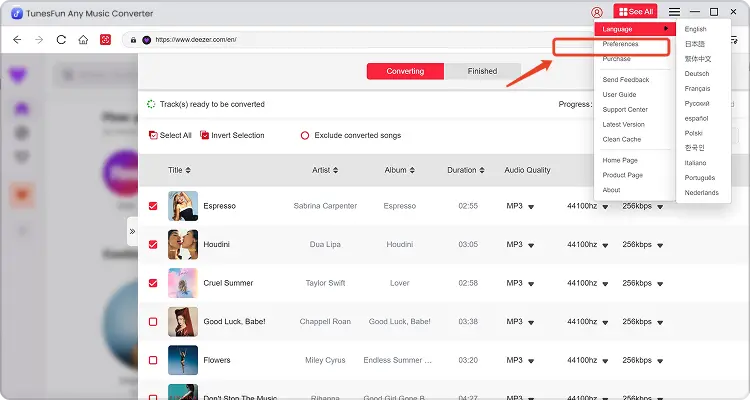
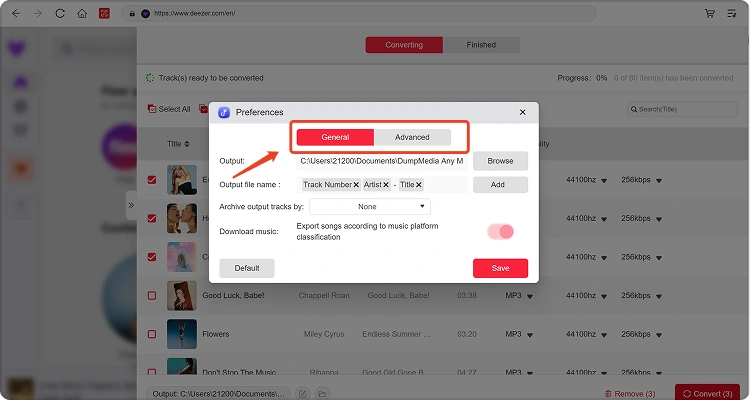
TunesFun Any Music Converterでは、ダウンロード設定やオーディオパラメータをカスタマイズして、変換プロセスと出力品質を制御できます。これらの設定は、変換を開始する前に変換リストから直接調整することも、メニュー>環境設定からお好みの設定を事前に保存することもできます。
言語
ソフトウェアのインターフェースに使用する言語を選択してください。
基本設定
- 外観 — ソフトウェアのインターフェースの外観をカスタマイズします。
- 出力フォルダ — 変換後のファイルを保存する場所を選択してください。
- 自動命名パターン — 変換されたファイルの命名形式をカスタマイズします。
- アーカイブ方法 — 変換された音楽ファイルの整理方法を選択します。
- 変換後 — 変換完了後に何が起こるかを選択します。
- 音楽を保存する — 変換した音楽ファイルの保存を有効または無効にします。
- 歌詞 — 変換した音楽に歌詞を保存するかどうかを有効または無効にします。
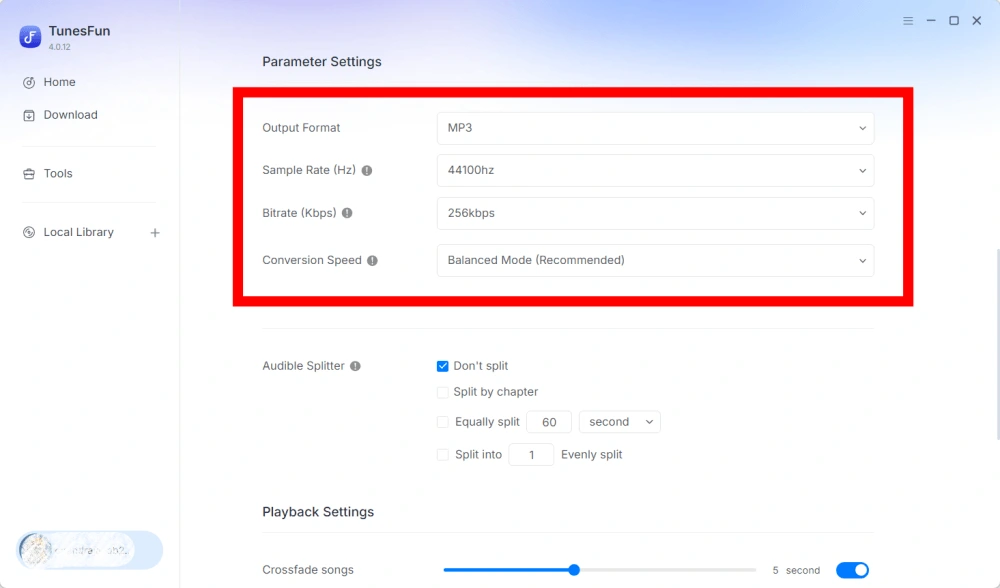
パラメータ設定
- 出力フォーマット — 希望する音声出力フォーマットを選択してください。
- サンプルレート(Hz)— 音声のサンプルレートを設定します。
- ビットレート(Kbps)— 音声ビットレートを調整して出力品質を制御します。
- 変換速度 — 必要に応じて変換速度を調整してください。
- Audible Splitter — Audibleのオーディオブックをより小さなセクションに分割します。
再生設定
クロスフェード機能 — 再生中に曲間をスムーズに切り替えることができます。
ネットワーク設定
- 同時ダウンロード — 同時にダウンロードする音楽ファイルの数を設定します。
- プロキシ — ネットワーク接続のプロキシ設定を構成します。
その他の設定
ポップアップ — ポップアップ通知を有効または無効にします。
パート5. 管理方法 TunesFun アカウント
TunesFun Any Music Converterでは、ソフトウェア内で直接アカウントを管理できます。
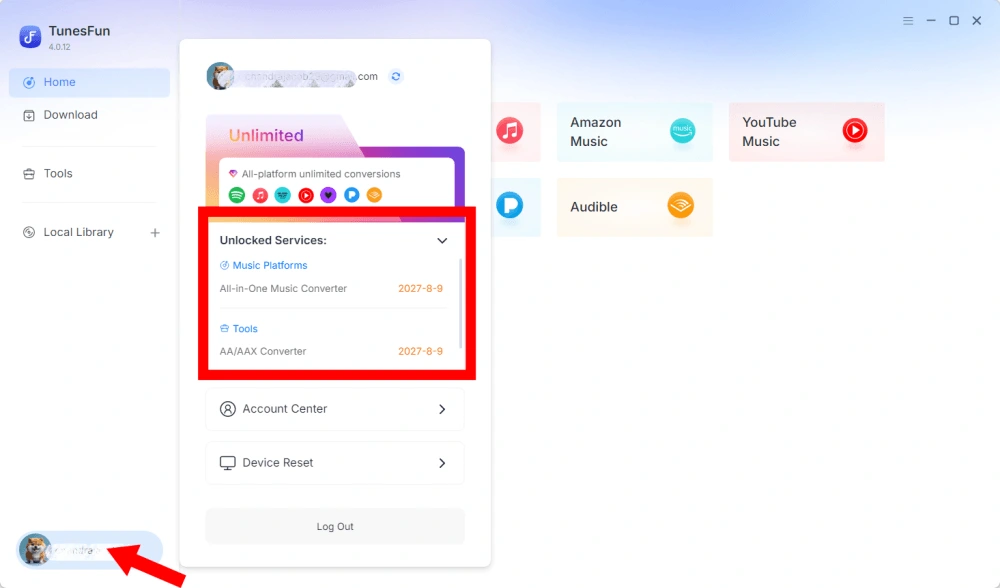
ロック解除されたサービスを表示
アカウントセクションに移動して、現在ロック解除されているサービスと機能を確認してください。 TunesFun アカウント。これにより、アカウントの状態や、ライセンスに基づいて利用可能な製品またはサービスを確認できます。
アカウントセンターにアクセス
プロフィールアイコン > 「アカウントセンター」をクリックしてアクセスしてください。 TunesFun アカウント管理センターでは、アカウントおよび関連情報を管理できます。
- 個人情報 — ユーザー名を更新し、「編集」をクリックしてアバター写真を変更してください。
- アカウントの削除 — アカウントを削除すると、アカウントおよび関連付けられたライセンスキーは直ちに無効化され、使用できなくなります。アカウントを削除する前に、有効なサブスクリプションがないことをご確認ください。
- 定期購読 — 現在の定期購読を表示および管理します。定期購読をキャンセルする場合は、「定期購読の管理」をクリックして一時停止してください。キャンセルできない場合は、カスタマーサービスにお問い合わせください。[メール保護]).
- デバイスの管理 — 別のデバイスに切り替えて使用したい場合は TunesFun 新しい端末では、簡単にこの作業を完了できます。リセットできない場合は、カスタマーサービスまでお問い合わせください。
- 請求情報 — ご注文の詳細はすべてこちらでご確認いただけます。請求書の内容が確認できない場合は、カスタマーサービスまでお問い合わせください。
- パスワードの変更 — お好みの新しいパスワードを設定してください。現在のパスワードを忘れた場合は、「パスワードを忘れた」をクリックしてください。画面の指示に従ってパスワードをリセットしてください。