 Convertidor de música de Deezer

 Mac
Mac Windows
Parte 1. Comience con TunesFun Convertidor de música de Deezer
Paso 1. Instalar TunesFun Convertidor de música de Deezer
Descarga e instala la última versión de TunesFun Instala Deezer Music Converter en tu ordenador. Una vez finalizada la instalación, ejecuta el programa para empezar.
Paso 2. Activar TunesFun Convertidor de música de Deezer
Tras iniciar el software, puede optar por continuar con la versión de prueba gratuita o activar la versión completa con una clave de licencia.
Para usuarios de prueba gratuita: Si no dispone de una clave de licencia, puede iniciar directamente el programa y explorar sus funciones disponibles. Con la versión de prueba gratuita, solo puede convertir 3 canciones completas de Deezer. Para convertir más pistas sin las limitaciones de Apple, deberá comprar la licencia.Vaya a la TunesFun Tienda onlinePuedes ponerte en contacto con nuestro equipo de atención al cliente para consultar las últimas promociones y ofertas especiales.
Para usuarios de pago: Si ya ha adquirido una licencia, active el software para desbloquear la versión completa. Haga clic en el icono de perfil en la esquina inferior izquierda. A continuación, seleccione «Iniciar sesión con licencia». Introduzca la dirección de correo electrónico asociada a su compra y su código de registro/clave de licencia. Haga clic en «Iniciar sesión» para completar la activación. Una vez activada, podrá acceder a las funciones incluidas en su licencia.
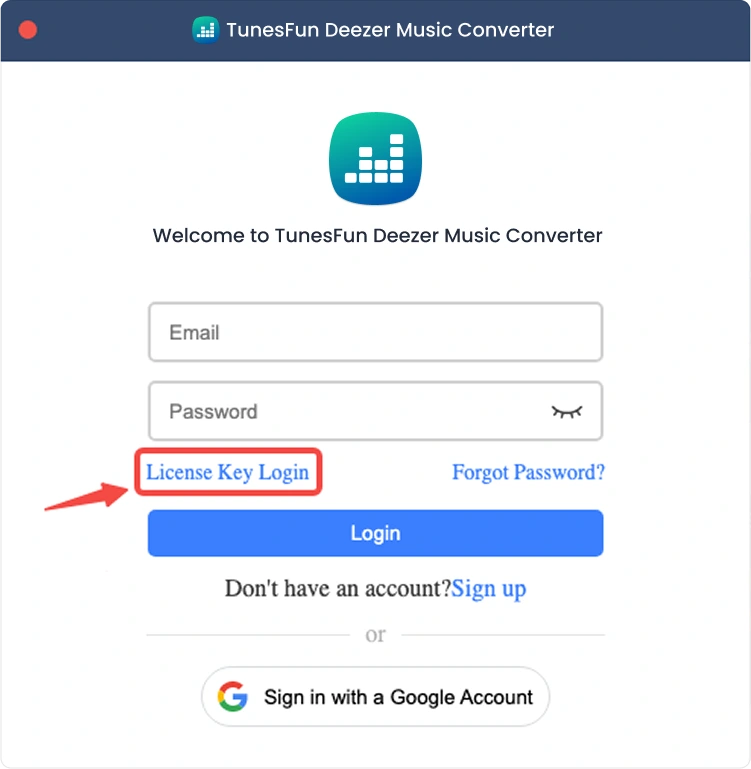
Nota: Asegúrese de ingresar la misma dirección de correo electrónico asociada con su compra y utilice el código de registro correcto. Es posible que se requiera una conexión a Internet activa para la verificación.
Parte 2. Cómo agregar música para la conversión
Paso 1. Inicia sesión en Deezer Music.
TunesFun Deezer Music Converter integra el reproductor web oficial de Deezer. Para explorar tu biblioteca musical, primero debes iniciar sesión en tu cuenta de Deezer.
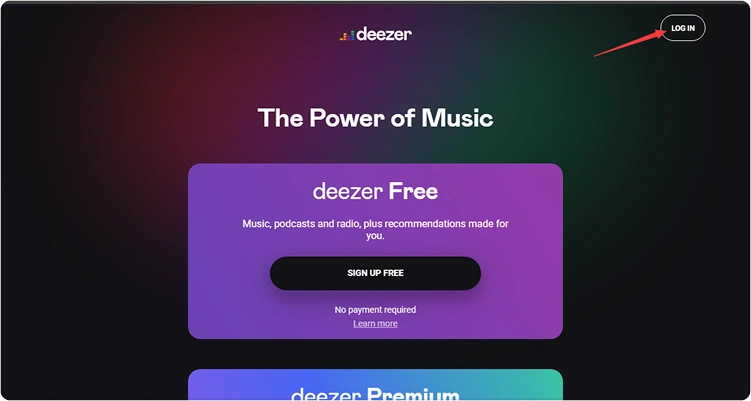
Paso 2. Agregue música al programa
Tras iniciar sesión en tu cuenta de música, puedes explorar la biblioteca musical y seleccionar el contenido que deseas convertir. Haz clic en «Añadir a la lista de conversión» junto a una pista o lista de reproducción para añadir la música seleccionada. También puedes arrastrar y soltar canciones, listas de reproducción u otro contenido compatible sobre el icono flotante «+» situado a la derecha de la interfaz.
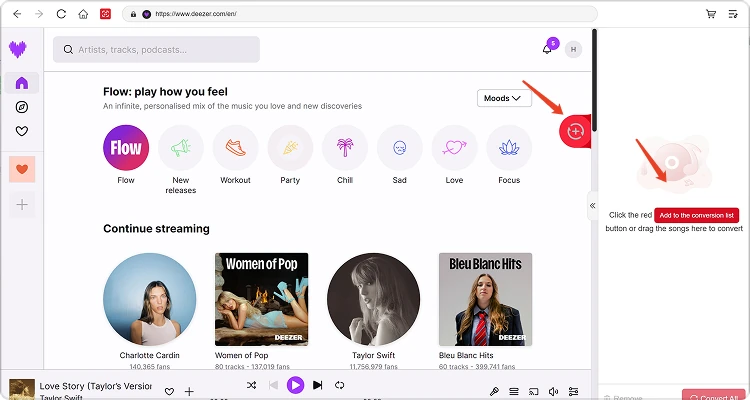
Disponibilidad del contenido: La disponibilidad de cualquier canción o álbum depende totalmente del estado de la suscripción y de los permisos regionales de la cuenta que utilice.
Paso 3. Seleccione el formato de salida
Tras añadir la música a la lista de conversión y configurar los ajustes de salida, seleccione el formato de salida que prefiera entre las opciones disponibles. Si es necesario, también puede ajustar la carpeta de salida y otros parámetros de audio.
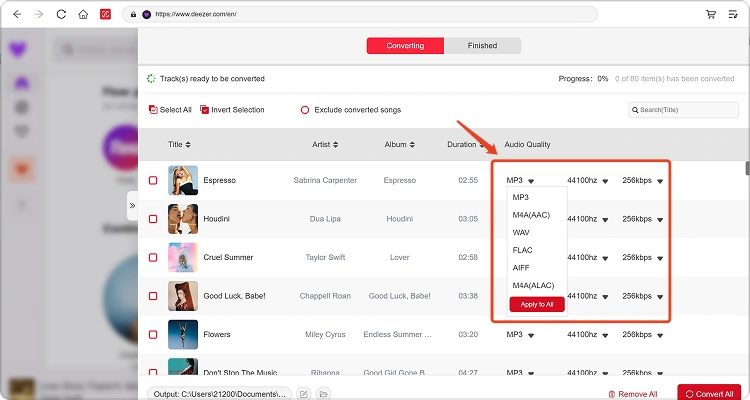
Paso 4. Comienza a convertir la música.
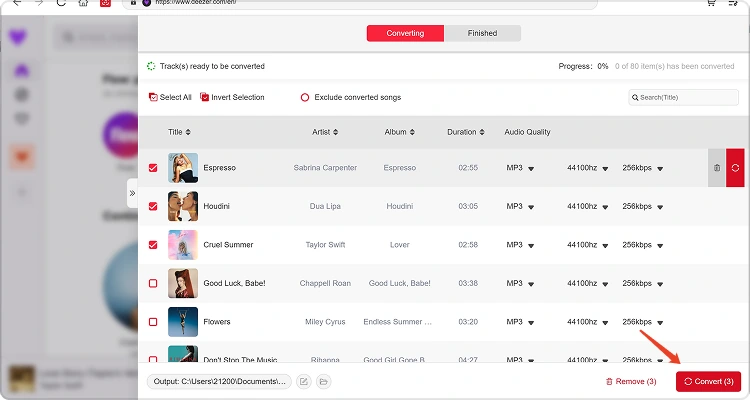
Cuando todo esté listo, haga clic en el botón «Convertir ahora» junto a cada elemento o en «Convertir todo» para procesar toda la música seleccionada a la vez. El progreso de la conversión se mostrará durante el proceso. Espere hasta que finalicen las tareas seleccionadas.
Paso 5. Verificar la música convertida
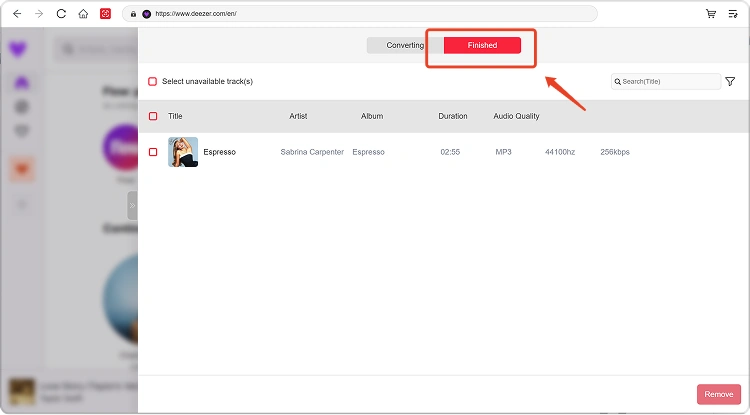
Una vez finalizada la conversión, ve a la sección Biblioteca local para ver los archivos convertidos. Haz clic en Ver archivo de salida para abrir la carpeta donde se guarda la música convertida. A continuación, podrás reproducir, gestionar o transferir los archivos según sea necesario.
Parte 3. ¿Qué debo hacer si falla la descarga?
Si encuentra algún problema al descargar o convertir música, pruebe lo siguiente:
- Asegúrate de haber iniciado sesión en la plataforma de música seleccionada.
- Comprueba tu conexión a Internet e inténtalo de nuevo.
- Reanudación TunesFun Utilice cualquier convertidor de música e intente la descarga nuevamente.
- Asegúrese de estar utilizando la última versión del software.
Si el problema persiste, envíe el archivo de registro del software:
- Haz clic en el menú situado en la parte superior derecha del programa y selecciona "Enviar comentarios".
- Describe brevemente el problema que encontraste en el cuadro de texto.
- Por último, marque la casilla "Adjuntar el archivo de registro" antes de enviar el formulario.
Parte 4. Cómo preconfigurar los ajustes de salida y los parámetros de audio.
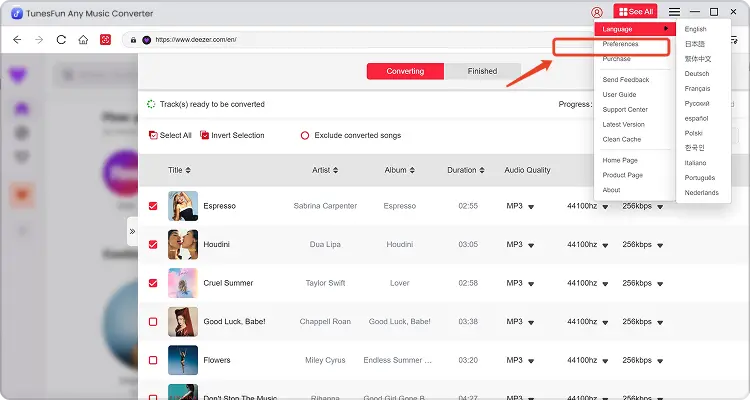
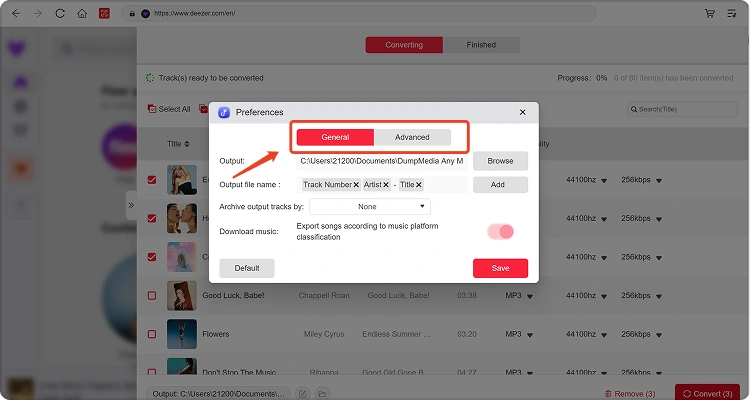
TunesFun Any Music Converter te permite personalizar la configuración de descarga y los parámetros de audio para controlar el proceso de conversión y la calidad de salida. Puedes ajustar estos parámetros directamente desde la lista de conversión antes de iniciarla, o ir a Menú > Preferencias para preconfigurar tus ajustes preferidos con antelación.
Idioma
Seleccione su idioma preferido para la interfaz del software.
Ajustes generales
- Apariencia: personaliza la apariencia de la interfaz del software.
- Carpeta de salida: seleccione dónde se guardarán los archivos convertidos.
- Patrón de nomenclatura automática: personaliza el formato de nomenclatura para los archivos convertidos.
- Archivar por: elige cómo se organizan los archivos de música convertidos.
- Después de la conversión: elige qué sucede una vez que se completa la conversión.
- Guardar música: permite activar o desactivar la función de guardar archivos de música convertidos.
- Letras: Activa o desactiva la opción de guardar las letras de las canciones con la música convertida.
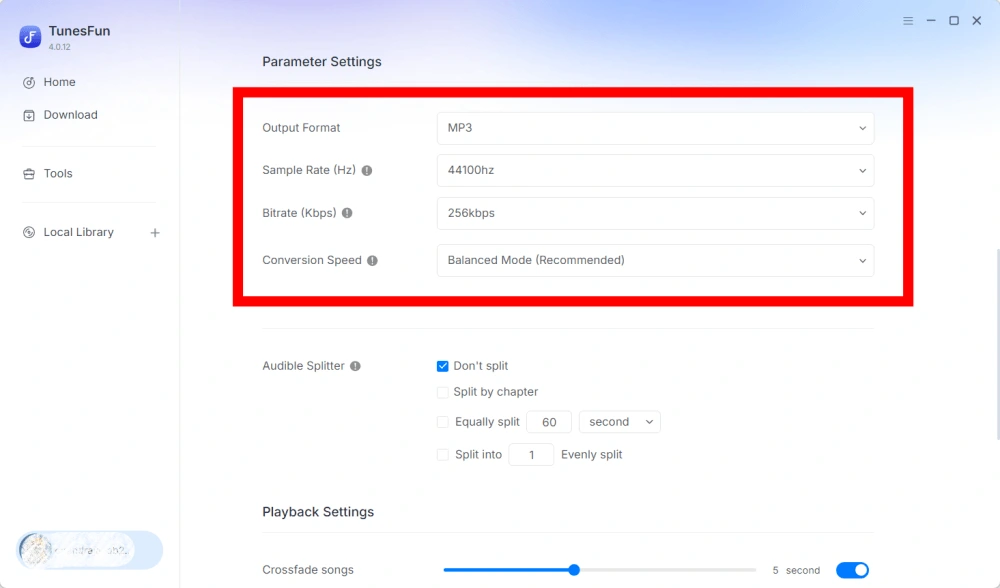
Configuraciones de Parámetros
- Formato de salida: seleccione el formato de salida de audio deseado.
- Frecuencia de muestreo (Hz): configure la frecuencia de muestreo de audio.
- Tasa de bits (Kbps): ajuste la tasa de bits de audio para controlar la calidad de salida.
- Velocidad de conversión: ajuste la velocidad de conversión según sus necesidades.
- Audible Splitter: divide los audiolibros de Audible en secciones más pequeñas.
Configuración de reproducción
Transición gradual entre canciones: permite una transición fluida entre canciones durante la reproducción.
Configuración de red
- Descargas simultáneas: configure la cantidad de archivos de música que se descargarán simultáneamente.
- Proxy: configure los ajustes de proxy para las conexiones de red.
Otros ajustes
Ventanas emergentes: active o desactive las notificaciones emergentes.
Parte 5. Cómo gestionar su TunesFun Cuenta
TunesFun Any Music Converter te permite gestionar tu cuenta directamente desde el software.
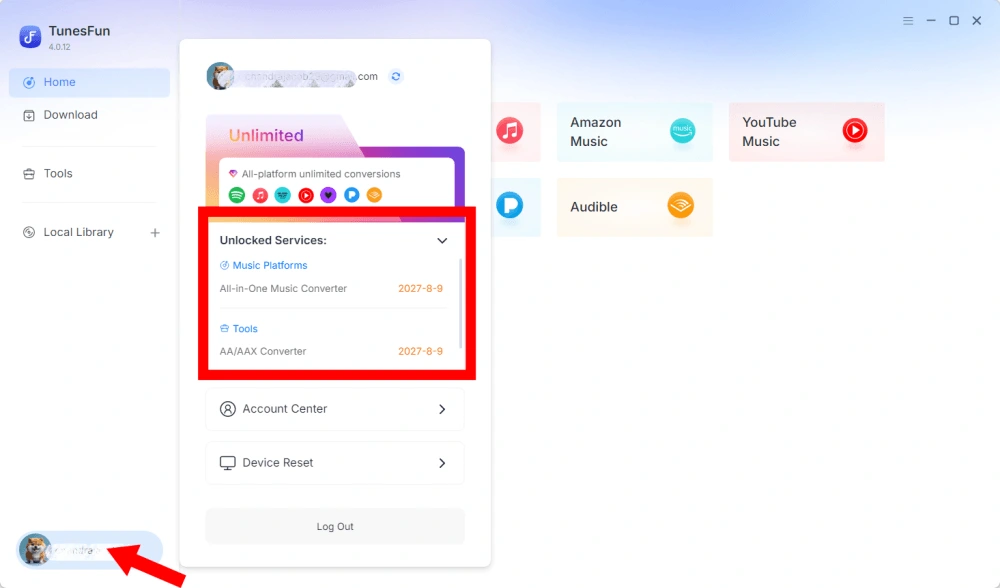
Ver servicios desbloqueados
Ve a la sección Cuenta para ver los servicios y funciones que tienes desbloqueados actualmente con tu cuenta. TunesFun Cuenta. Esto le permite consultar el estado de su cuenta y los productos o servicios disponibles bajo su licencia.
Centro de acceso a la cuenta
Haz clic en el icono de perfil > "Centro de cuentas" para acceder al TunesFun Centro donde podrá gestionar su cuenta y la información relacionada.
- Información personal: actualiza tu nombre de usuario y haz clic en "editar" para cambiar la foto de tu avatar.
- Eliminar cuenta: Una vez eliminada su cuenta, tanto esta como la clave de licencia asociada se desactivarán inmediatamente y no podrá volver a utilizarse. Antes de eliminar su cuenta, asegúrese de no tener ninguna suscripción activa.
- Suscripción: vea y administre sus suscripciones actuales. Si desea cancelar una suscripción, simplemente haga clic en "Administrar suscripción" para pausarla. Si no puede cancelarla, comuníquese con el servicio de atención al cliente ([email protected]).
- Administrar dispositivos: si está cambiando a otro dispositivo y desea utilizar TunesFun En el nuevo dispositivo, podrá completar la tarea fácilmente. Si no puede restablecerlo, póngase en contacto con el servicio de atención al cliente.
- Facturación: Aquí encontrará todos los detalles de su pedido. Si no puede consultar la factura, póngase en contacto con el servicio de atención al cliente.
- Cambiar contraseña: Establezca la nueva contraseña que desee. Si olvidó su contraseña actual, haga clic en «¿Olvidó su contraseña?». Siga las instrucciones en pantalla para restablecerla.