 Pandora Muziek Converter

 Mac
Mac Windows
Deel 1. Aan de slag met TunesFun Pandora Muziek Converter
Stap 1. Installeren TunesFun Pandora Muziek Converter
Download en installeer de nieuwste versie van TunesFun Pandora Music Converter is geïnstalleerd op uw computer. Zodra de installatie is voltooid, start u het programma om aan de slag te gaan.
Stap 2. Activeer TunesFun Pandora Muziek Converter
Na het opstarten van de software kunt u ervoor kiezen om door te gaan met de gratis proefversie of de volledige versie te activeren met een licentiesleutel.
Voor gebruikers van de gratis proefversie: Als je geen licentiesleutel hebt, kun je het programma direct starten en de beschikbare functies verkennen. Met de gratis proefversie kun je slechts 3 volledige nummers van Pandora Music converteren. Om meer nummers te converteren zonder de beperkingen van Apple, moet je een licentie aanschaffen.Ga naar uw TunesFun WebwinkelU kunt contact opnemen met onze klantenservice om de nieuwste acties en speciale aanbiedingen te bekijken.
Voor betalende gebruikers: Als u al een licentie hebt aangeschaft, activeer dan de software om de volledige versie te ontgrendelen. Klik op het profielpictogram in de linkerbenedenhoek. Kies vervolgens 'Inloggen met licentie'. Voer het e-mailadres in dat bij uw aankoop hoort en uw registratiecode/licentiesleutel. Klik op 'Inloggen' om de activering te voltooien. Na activering hebt u toegang tot de functies die bij uw licentie zijn inbegrepen.
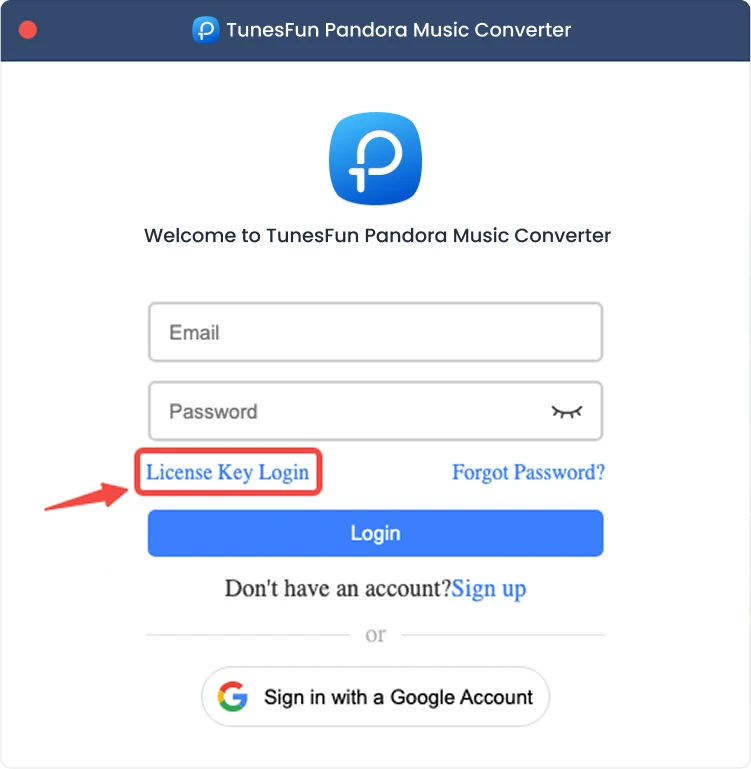
Let op: Zorg ervoor dat u hetzelfde e-mailadres gebruikt als bij uw aankoop en dat u de juiste registratiecode invoert. Een actieve internetverbinding kan vereist zijn voor verificatie.
Deel 2. Hoe voeg je muziek toe voor conversie?
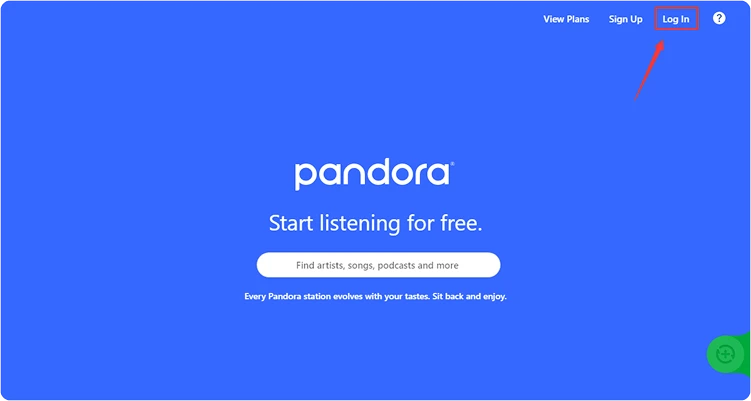
Stap 1. Log in bij Pandora Music
TunesFun Pandora Music Converter integreert de officiële Pandora Music-webplayer. Meld u eerst aan bij uw Pandora Music-account om uw muziekbibliotheek te bekijken.
Stap 2. Muziek aan het programma toevoegen
Nadat je bent ingelogd op je muziekaccount, kun je door je muziekbibliotheek bladeren en de content selecteren die je wilt converteren. Klik op 'Toevoegen aan conversie' naast een nummer of afspeellijst om de geselecteerde muziek aan de conversielijst toe te voegen. Je kunt ook nummers, afspeellijsten of andere ondersteunde content naar het zwevende '+' pictogram aan de rechterkant van de interface slepen.
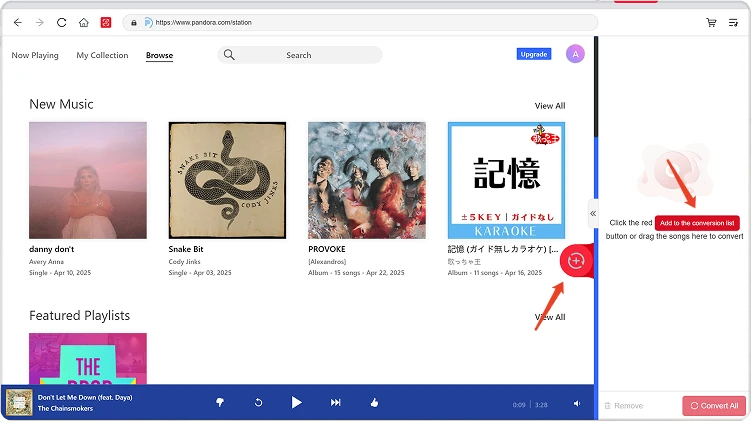
Beschikbaarheid van content: De beschikbaarheid van een nummer of album is volledig afhankelijk van de abonnementsstatus en de regionale instellingen van het account dat u gebruikt.
Stap 3. Selecteer het uitvoerformaat
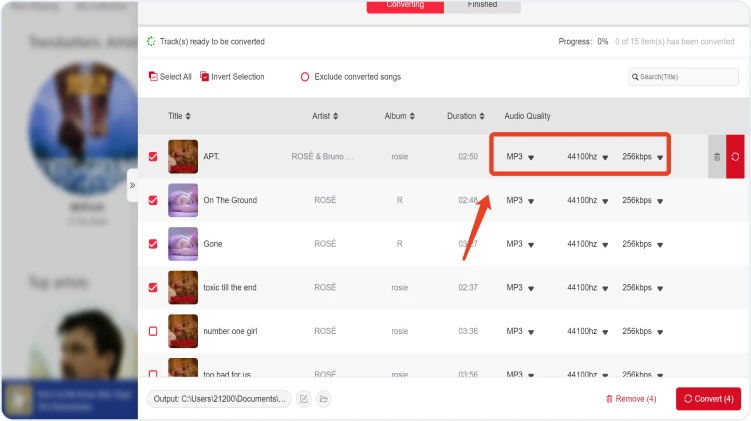
Nadat je muziek aan de conversielijst hebt toegevoegd en je gewenste uitvoerinstellingen hebt geconfigureerd, selecteer je het gewenste uitvoerformaat uit de beschikbare opties. Je kunt indien nodig ook de uitvoermap en andere audioparameters aanpassen.
Stap 4. Begin met het converteren van muziek.
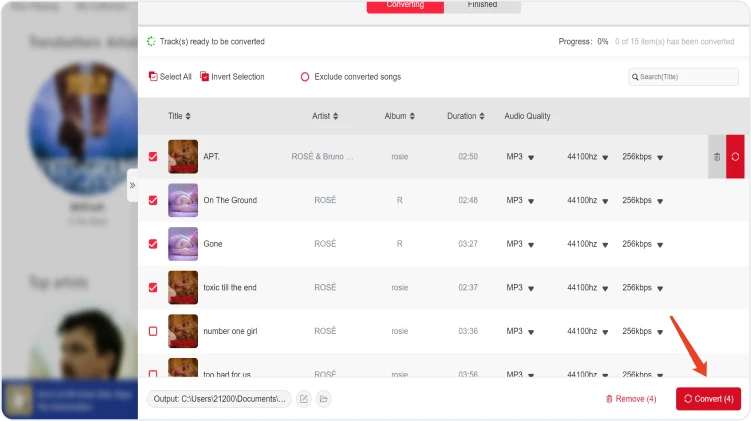
Zodra alles gereed is, klikt u op de knop 'Nu converteren' naast een afzonderlijk item of op 'Alles converteren' om alle geselecteerde muziek in één keer te verwerken. De voortgang van de conversie wordt tijdens het proces weergegeven. Wacht tot de geselecteerde taken zijn voltooid.
Stap 5. Controleer de geconverteerde muziek.
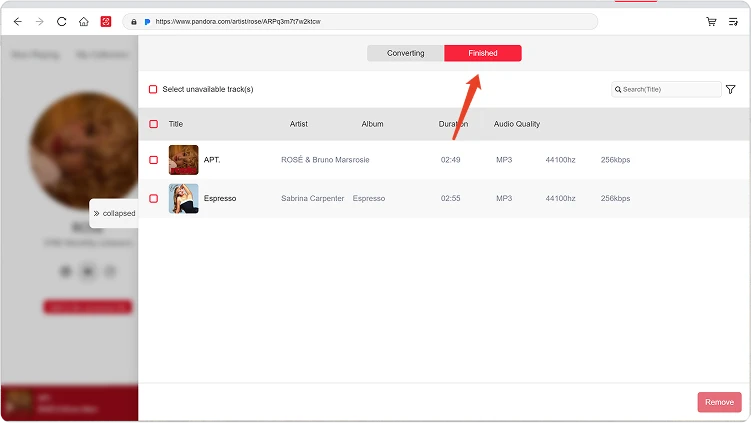
Nadat de conversie is voltooid, gaat u naar het gedeelte 'Lokale bibliotheek' om uw geconverteerde bestanden te bekijken. Klik op 'Uitvoerbestand bekijken' om de map te openen waarin de geconverteerde muziek is opgeslagen. U kunt de bestanden vervolgens afspelen, beheren of overzetten.
Deel 3. Wat moet ik doen als de download mislukt?
Als je problemen ondervindt tijdens het downloaden of converteren van muziek, probeer dan het volgende:
- Zorg ervoor dat je bent ingelogd op het geselecteerde muziekplatform.
- Controleer je internetverbinding en probeer het opnieuw.
- Herstart TunesFun Probeer Any Music Converter opnieuw en start de download nogmaals.
- Zorg ervoor dat u de nieuwste versie van de software gebruikt.
Als het probleem aanhoudt, stuur dan het softwarelogbestand op:
- Klik op het menu rechtsboven in het programma en kies 'Feedback verzenden'.
- Beschrijf het probleem dat u bent tegengekomen kort in het tekstvak.
- Vink tot slot het vakje 'Logbestand bijvoegen' aan voordat u het formulier verzendt.
Deel 4. Hoe u uitvoerinstellingen en audioparameters vooraf instelt
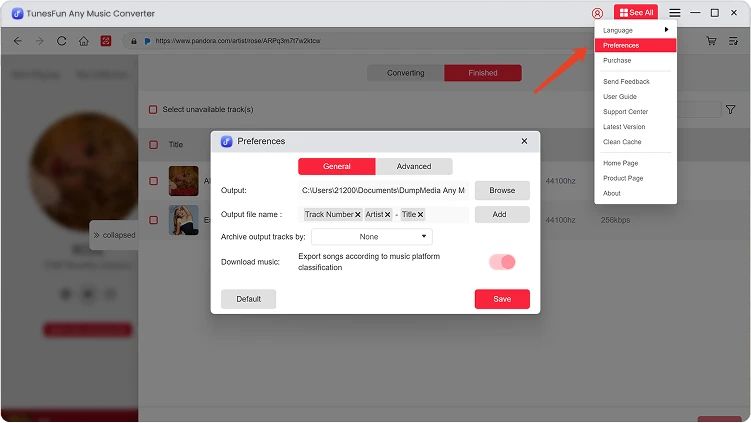
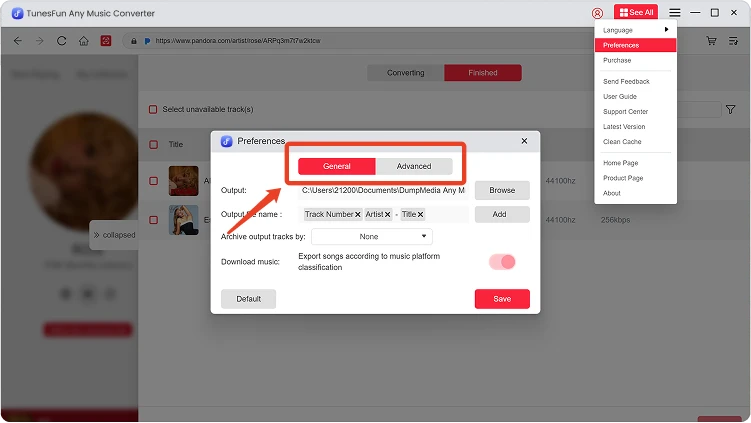
TunesFun Any Music Converter biedt je de mogelijkheid om downloadinstellingen en audioparameters aan te passen om het conversieproces en de uitvoerkwaliteit te controleren. Je kunt deze instellingen rechtstreeks in de conversielijst aanpassen voordat je een conversie start, of naar Menu > Voorkeuren gaan om je voorkeursinstellingen vooraf in te stellen.
Taal
Selecteer de gewenste taal voor de software-interface.
Algemene instellingen
- Uiterlijk — Pas het uiterlijk van de software-interface aan.
- Uitvoermap — Selecteer waar uw geconverteerde bestanden worden opgeslagen.
- Automatisch naamgevingspatroon — Pas de naamgevingsindeling voor geconverteerde bestanden aan.
- Archiveren op — Kies hoe geconverteerde muziekbestanden worden georganiseerd.
- Na de conversie — Kies wat er gebeurt nadat de conversie is voltooid.
- Muziek opslaan — Schakel het opslaan van geconverteerde muziekbestanden in of uit.
- Songteksten — Schakel het opslaan van songteksten bij de geconverteerde muziek in of uit.
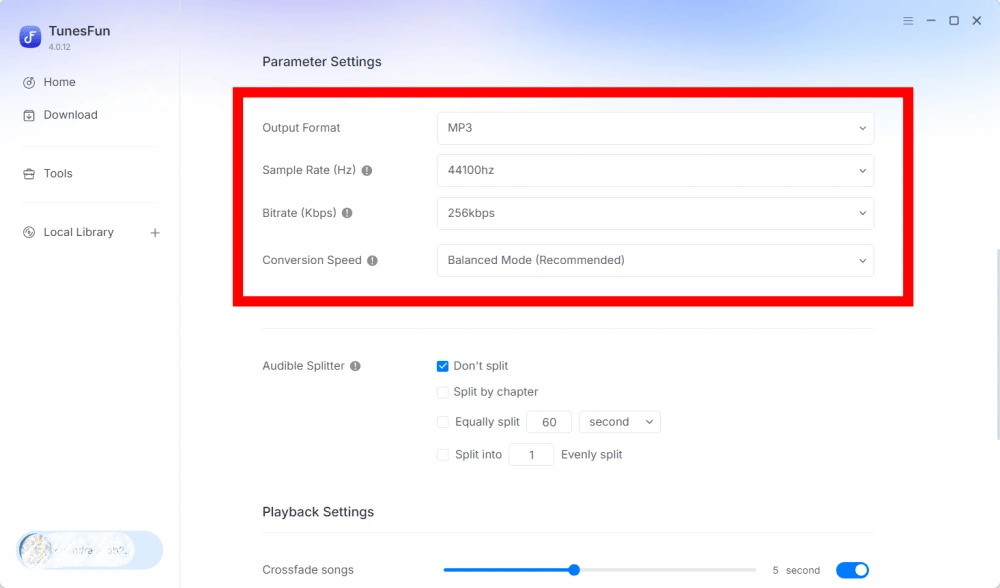
Parameterinstellingen
- Uitvoerformaat — Selecteer het gewenste audio-uitvoerformaat.
- Samplefrequentie (Hz) — Stel de audiosamplefrequentie in.
- Bitrate (Kbps) — Pas de audiobitrate aan om de uitvoerkwaliteit te regelen.
- Conversiesnelheid — Pas de conversiesnelheid aan uw behoeften aan.
- Audible Splitter — Splits Audible-audioboeken in kleinere delen.
Playback-instellingen
Crossfade-functie voor nummers — Maakt een vloeiende overgang tussen nummers mogelijk tijdens het afspelen.
Netwerkinstellingen
- Gelijktijdige downloads — Stel het aantal muziekbestanden in dat u tegelijkertijd wilt downloaden.
- Proxy — Configureer de proxy-instellingen voor netwerkverbindingen.
Andere instellingen
Pop-ups — Schakel pop-upmeldingen in of uit.
Deel 5. Hoe u uw TunesFun Account
TunesFun Any Music Converter biedt u de mogelijkheid om uw account rechtstreeks vanuit de software te beheren.
Bekijk ontgrendelde services
Ga naar het gedeelte 'Account' om de services en functies te bekijken die momenteel met uw account zijn ontgrendeld. TunesFun account. Hiermee kunt u de status van uw account controleren en de producten of diensten bekijken die onder uw licentie beschikbaar zijn.
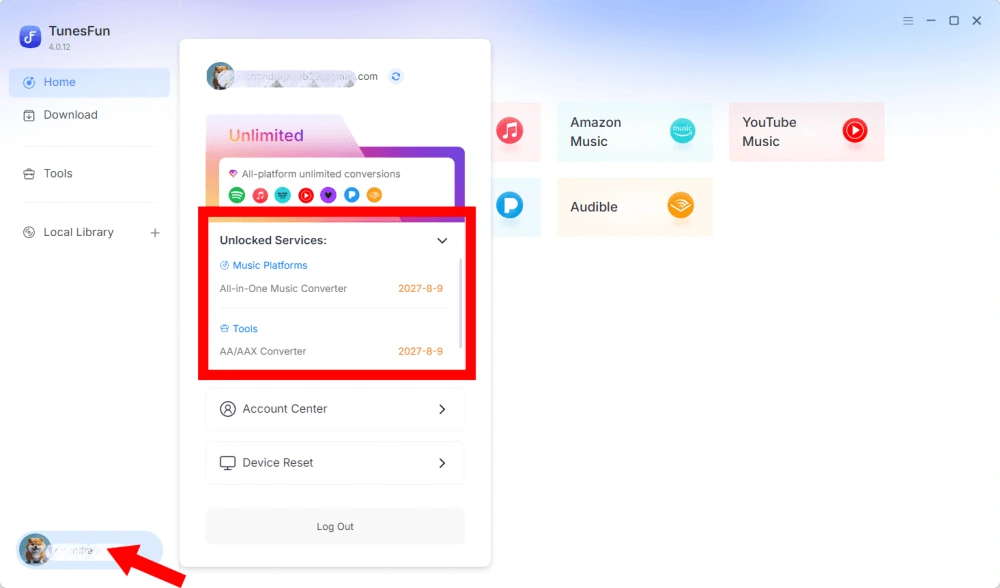
Toegang tot het accountcentrum
Klik op het profielpictogram > "Accountcentrum" om toegang te krijgen tot het accountcentrum. TunesFun Het centrum, waar u uw account en bijbehorende informatie kunt beheren.
- Persoonlijke gegevens — Werk je gebruikersnaam bij en klik op 'bewerken' om je avatarfoto te wijzigen.
- Account verwijderen — Zodra uw account is verwijderd, worden uw account en de bijbehorende licentiesleutel onmiddellijk gedeactiveerd en kunnen deze niet meer worden gebruikt. Controleer voordat u uw account verwijdert of u geen actieve abonnementen hebt.
- Abonnementen — Bekijk en beheer uw huidige abonnementen. Als u een abonnement wilt annuleren, klikt u op 'Abonnement beheren' om het te pauzeren. Als u niet kunt annuleren, neem dan contact op met de klantenservice.[e-mail beveiligd]).
- Apparaten beheren — Als u overschakelt naar een ander apparaat en dit wilt gebruiken TunesFun Op het nieuwe apparaat kunt u de taak eenvoudig voltooien. Als het resetten niet lukt, neem dan contact op met de klantenservice.
- Facturering — Alle bestelgegevens vindt u hier. Als u de factuur niet kunt controleren, neem dan contact op met de klantenservice.
- Wachtwoord wijzigen — Stel een nieuw wachtwoord in. Als u uw huidige wachtwoord bent vergeten, klik dan op 'Vergeten'. Volg de instructies op het scherm om uw wachtwoord opnieuw in te stellen.