 Музыкальный конвертер Deezer

 Mac
Mac Windows
Часть 1. Начало работы с TunesFun Музыкальный конвертер Deezer
Шаг 1. устанавливать TunesFun Музыкальный конвертер Deezer
Загрузите и установите последнюю версию TunesFun Установите Deezer Music Converter на свой компьютер. После завершения установки запустите программу, чтобы начать работу.
Шаг 2. Активируйте TunesFun Музыкальный конвертер Deezer
После запуска программы вы можете выбрать продолжение бесплатного пробного периода или активацию полной версии с помощью лицензионного ключа.
Для пользователей бесплатной пробной версии: Если у вас нет лицензионного ключа, вы можете запустить программу напрямую и ознакомиться с её функциями. В бесплатной пробной версии вы можете конвертировать только 3 полные песни из Deezer. Для конвертации большего количества треков без ограничений Apple вам потребуется приобрести лицензию.Перейдите на сайт TunesFun Интернет-магазинВы можете связаться с нашей службой поддержки клиентов, чтобы узнать о последних акциях и специальных предложениях.
Для платных пользователей: Если вы уже приобрели лицензию, активируйте программное обеспечение, чтобы разблокировать полную версию. Щелкните значок профиля в левом нижнем углу. Затем выберите «Войти с помощью лицензии». Введите адрес электронной почты, связанный с вашей покупкой, и ваш регистрационный код/лицензионный ключ. Нажмите «Войти», чтобы завершить активацию. После активации вы сможете получить доступ к функциям, включенным в вашу лицензию.
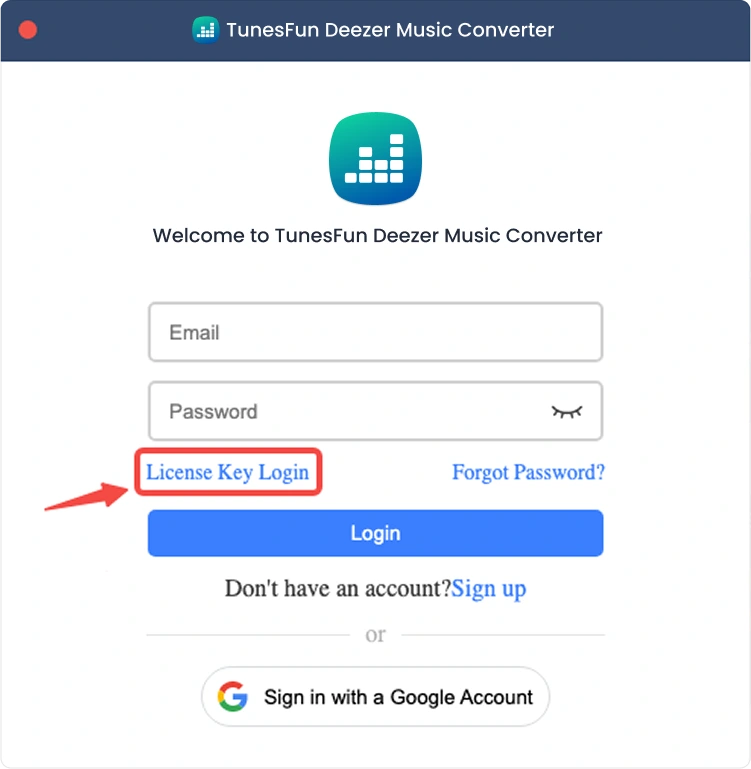
Примечание: Убедитесь, что вы ввели тот же адрес электронной почты, который был указан при покупке, и использовали правильный регистрационный код. Для подтверждения может потребоваться активное подключение к Интернету.
Часть 2. Как добавить музыку для конвертации
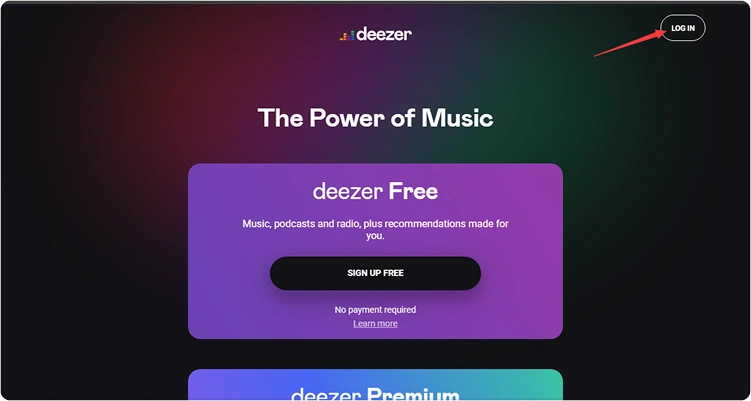
Шаг 1. Войдите в Deezer Music.
TunesFun Deezer Music Converter интегрируется с официальным веб-плеером Deezer. Для просмотра вашей музыкальной библиотеки сначала войдите в свою учетную запись Deezer.
Шаг 2. Добавьте музыку в программу
После входа в свою музыкальную учетную запись вы можете просмотреть музыкальную библиотеку и выбрать контент, который хотите конвертировать. Нажмите «Добавить для конвертации» рядом с треком или плейлистом, чтобы добавить выбранную музыку в список конвертации. Вы также можете перетаскивать песни, плейлисты или другой поддерживаемый контент на плавающий значок «+» в правой части интерфейса.
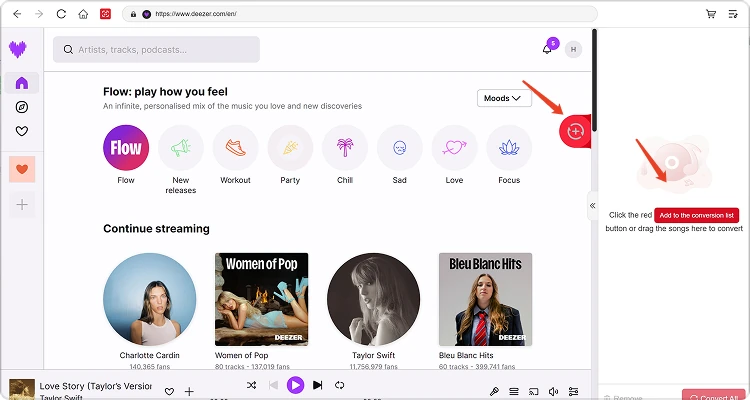
Доступность контента: Доступность любой песни или альбома полностью зависит от статуса подписки и региональных настроек используемой вами учетной записи.
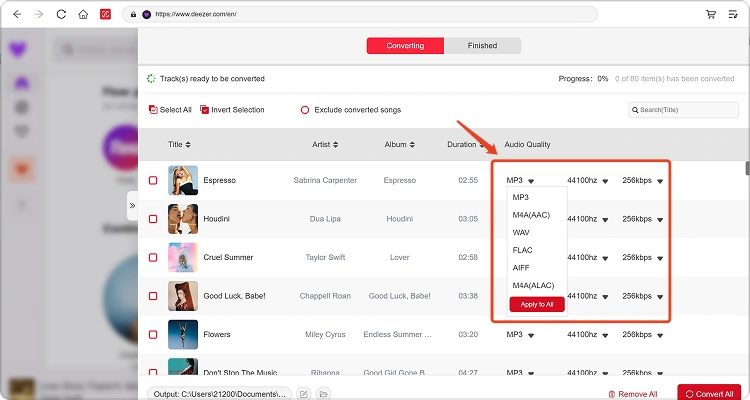
Шаг 3. Выберите формат вывода
После добавления музыки в список для конвертации и настройки предпочтительных параметров вывода выберите желаемый формат из доступных вариантов. При необходимости вы также можете изменить папку для сохранения и другие параметры аудио.
Шаг 4. Начните конвертировать музыку.
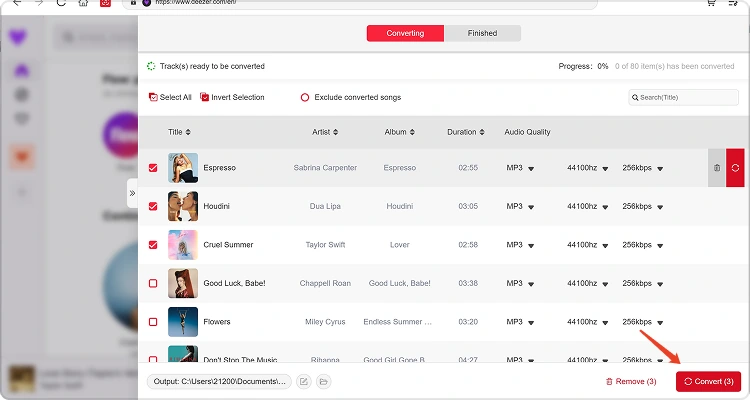
Когда все будет готово, нажмите кнопку «Конвертировать сейчас» рядом с отдельным элементом или кнопку «Конвертировать все», чтобы обработать всю выбранную музыку одновременно. Ход конвертации будет отображаться во время процесса. Пожалуйста, дождитесь завершения выбранных задач.
Шаг 5. Проверьте преобразованную музыку.
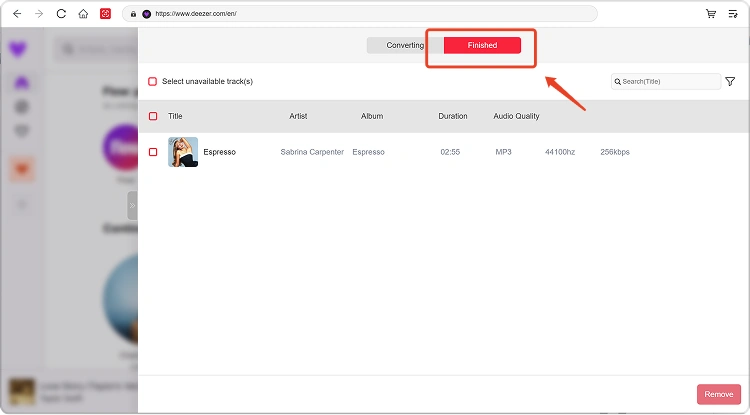
После завершения преобразования перейдите в раздел «Локальная библиотека», чтобы просмотреть преобразованные файлы. Нажмите «Просмотреть выходной файл», чтобы открыть папку, где сохранена преобразованная музыка. Затем вы можете воспроизводить, управлять или передавать файлы по мере необходимости.
Часть 3. Что делать, если загрузка не удалась?
Если у вас возникли проблемы при загрузке или конвертации музыки, попробуйте следующее:
- Убедитесь, что вы вошли в выбранную музыкальную платформу.
- Проверьте подключение к интернету и попробуйте снова.
- Restart TunesFun Попробуйте использовать любой музыкальный конвертер и повторите загрузку.
- Убедитесь, что вы используете последнюю версию программного обеспечения.
Если проблема сохраняется, пожалуйста, отправьте файл журнала программного обеспечения:
- Щелкните меню в правом верхнем углу программы и выберите «Отправить отзыв».
- Кратко опишите возникшую проблему в текстовом поле.
- Наконец, перед отправкой, пожалуйста, поставьте галочку в поле «Прикрепить файл журнала».
Часть 4. Как предварительно настроить параметры вывода и аудиопараметры.
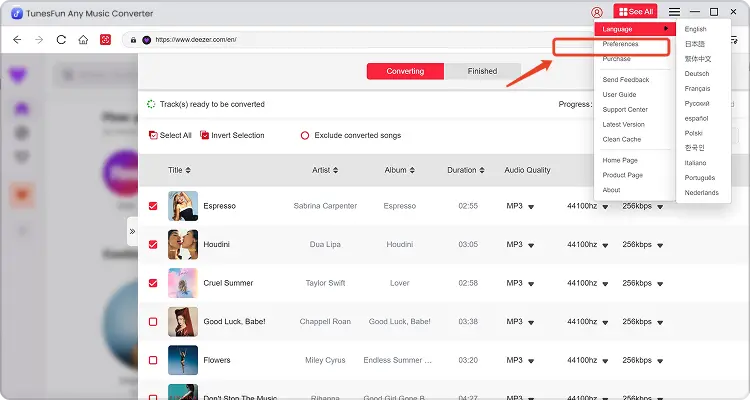
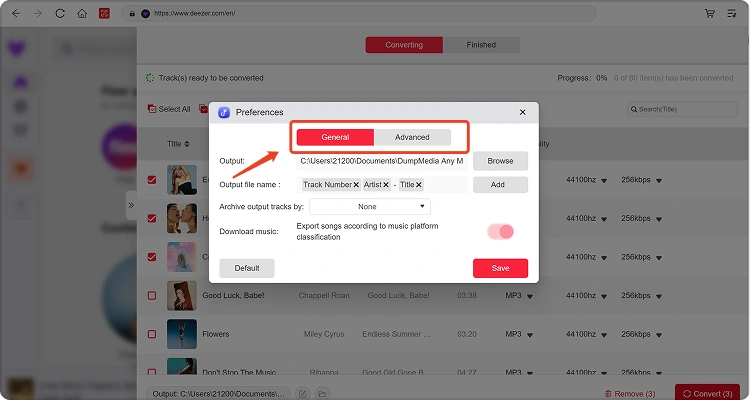
TunesFun Any Music Converter позволяет настраивать параметры загрузки и аудиопараметры для управления процессом конвертации и качеством выходного файла. Вы можете изменить эти настройки непосредственно из списка конвертируемых файлов перед началом конвертации или перейти в Меню > Настройки, чтобы заранее задать предпочтительные параметры.
Язык
Выберите предпочитаемый язык интерфейса программы.
общие настройки
- Внешний вид — Настройка внешнего вида интерфейса программного обеспечения.
- Папка для сохранения результатов — выберите место, куда будут сохранены преобразованные файлы.
- Шаблон автоматического именования — настройте формат именования для преобразованных файлов.
- Архивировать по — Выберите способ организации преобразованных музыкальных файлов.
- После завершения конвертации — выберите, что произойдет после завершения конвертации.
- Сохранить музыку — Включить или отключить сохранение преобразованных музыкальных файлов.
- Текст песни — Включить или отключить сохранение текста песни вместе с преобразованной музыкой.
Настройки параметров
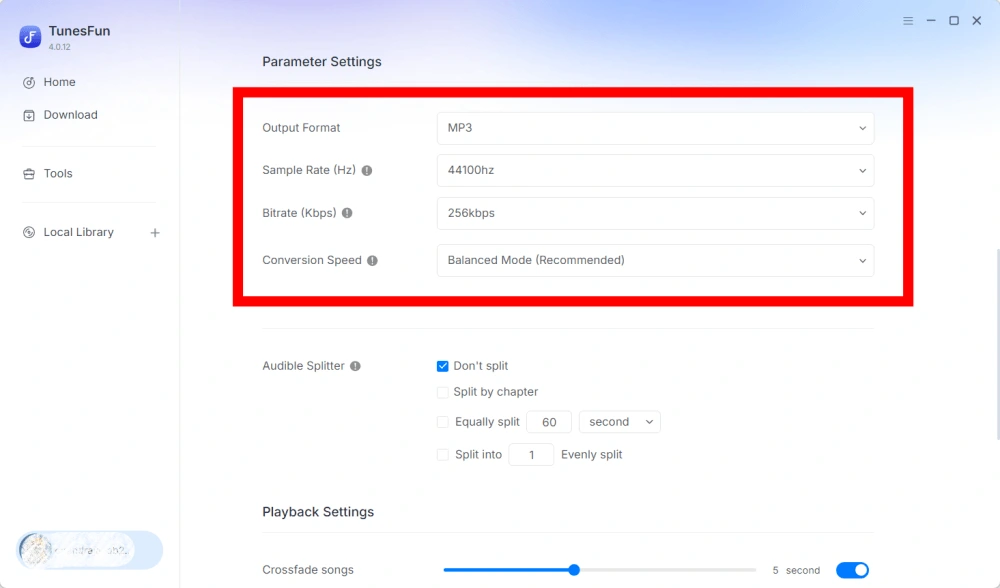
- Формат вывода — Выберите желаемый формат вывода звука.
- Частота дискретизации (Гц) — Установите частоту дискретизации звука.
- Битрейт (кбит/с) — отрегулируйте битрейт звука для управления качеством вывода.
- Скорость конвертации — отрегулируйте скорость конвертации в соответствии с вашими потребностями.
- Audible Splitter — Разделяет аудиокниги Audible на более мелкие части.
Настройки воспроизведения
Функция плавного перехода между песнями — обеспечивает плавный переход между композициями во время воспроизведения.
Параметры сети
- Одновременная загрузка — укажите количество музыкальных файлов, которые будут загружаться одновременно.
- Прокси — Настройка параметров прокси для сетевых подключений.
Другие настройки
Всплывающие окна — Включение или отключение всплывающих уведомлений.
Часть 5. Как управлять своими TunesFun Аккаунт
TunesFun Any Music Converter позволяет управлять своей учетной записью непосредственно в программе.
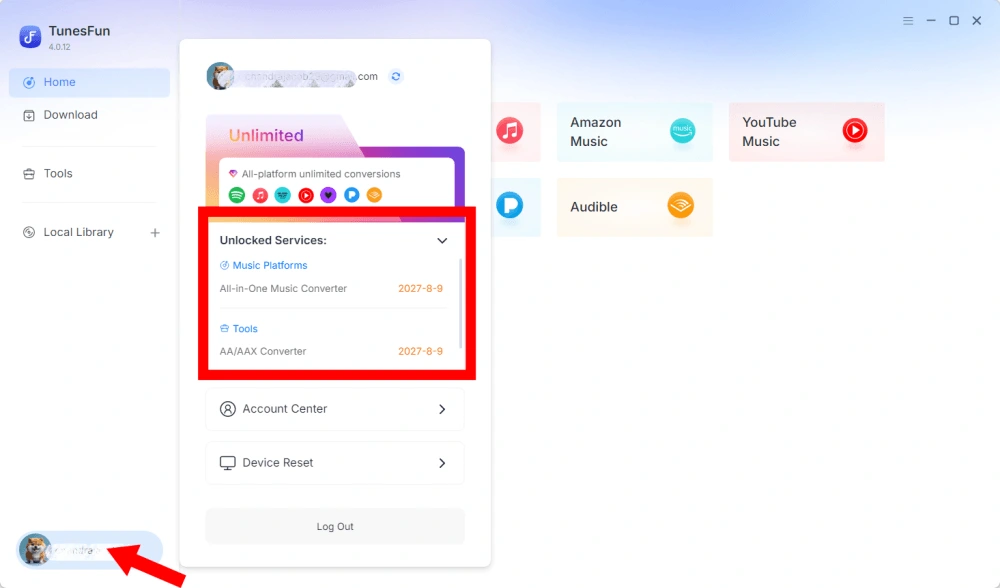
Просмотреть разблокированные услуги
Перейдите в раздел «Учетная запись», чтобы просмотреть услуги и функции, которые в данный момент разблокированы для вас. TunesFun Учетная запись. Это позволяет проверять состояние вашей учетной записи, а также продукты или услуги, доступные по вашей лицензии.
Доступ к Центру учётных записей
Нажмите на значок профиля > «Центр учетной записи», чтобы перейти в TunesFun Центр, где вы можете управлять своей учетной записью и связанной с ней информацией.
- Личная информация — Обновите свое имя пользователя и нажмите «редактировать», чтобы изменить фотографию аватара.
- Удаление аккаунта — После удаления аккаунта он и связанный с ним лицензионный ключ будут немедленно деактивированы и больше не смогут использоваться. Перед удалением аккаунта убедитесь, что у вас нет активных подписок.
- Подписка — Просматривайте и управляйте своими текущими подписками. Если вы хотите отменить подписку, просто нажмите «Управление подпиской», чтобы приостановить ее. Если отменить подписку не удается, обратитесь в службу поддержки клиентов.[электронная почта защищена]).
- Управление устройствами — Если вы переключаетесь на другое устройство и хотите использовать TunesFun На новом устройстве вы легко сможете выполнить эту задачу. Если сброс настроек не удается, обратитесь в службу поддержки клиентов.
- Оплата — Все детали заказа можно найти здесь. Если вы не можете проверить счет, пожалуйста, свяжитесь со службой поддержки клиентов.
- Изменить пароль — Установите новый пароль по своему вкусу. Если вы забыли свой текущий пароль, нажмите «Забыли». Следуйте инструкциям на экране, чтобы сбросить пароль.