 Deezer Musikkonverter

 Download Mac
 Windows
Teil 1. Erste Schritte mit TunesFun Deezer Musikkonverter
Schritt 1. Installieren TunesFun Deezer Musikkonverter
Laden Sie die neueste Version von herunter und installieren Sie sie TunesFun Installieren Sie Deezer Music Converter auf Ihrem Computer. Sobald die Installation abgeschlossen ist, starten Sie das Programm, um loszulegen.
Schritt 2. Aktivieren TunesFun Deezer Musikkonverter
Nach dem Start der Software können Sie entscheiden, ob Sie mit der kostenlosen Testversion fortfahren oder die Vollversion mit einem Lizenzschlüssel aktivieren möchten.
Für Nutzer der kostenlosen Testversion: Wenn Sie keinen Lizenzschlüssel besitzen, können Sie das Programm direkt starten und seine Funktionen erkunden. Mit der kostenlosen Testversion können Sie nur 3 vollständige Songs von Deezer konvertieren. Um mehr Titel ohne Apple-Beschränkungen zu konvertieren, müssen Sie die Lizenz erwerben.Gehen Sie zur TunesFun Online-ShopSie können sich an unser Kundenservice-Team wenden, um die neuesten Aktionen und Sonderangebote zu erfahren.
Für zahlende Nutzer: Wenn Sie bereits eine Lizenz erworben haben, aktivieren Sie die Software, um die Vollversion freizuschalten. Klicken Sie dazu auf das Profilsymbol unten links. Wählen Sie anschließend „Mit Lizenz anmelden“. Geben Sie die mit Ihrem Kauf verknüpfte E-Mail-Adresse und Ihren Registrierungscode/Lizenzschlüssel ein. Klicken Sie auf „Anmelden“, um die Aktivierung abzuschließen. Nach der Aktivierung stehen Ihnen alle in Ihrer Lizenz enthaltenen Funktionen zur Verfügung.
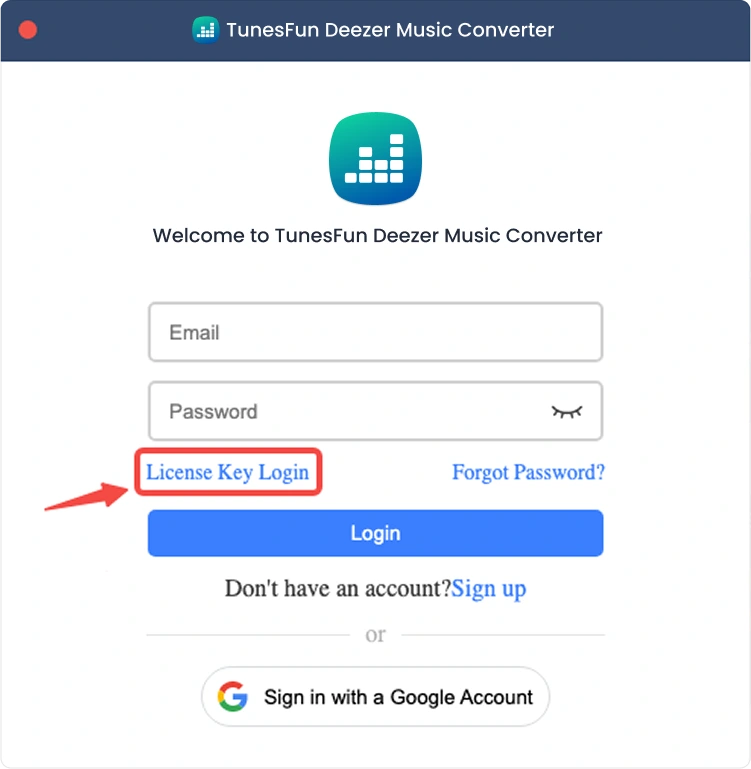
Hinweis: Bitte geben Sie dieselbe E-Mail-Adresse an, die Sie beim Kauf verwendet haben, und nutzen Sie den korrekten Registrierungscode. Zur Verifizierung ist möglicherweise eine aktive Internetverbindung erforderlich.
Teil 2. So fügen Sie Musik für die Konvertierung hinzu
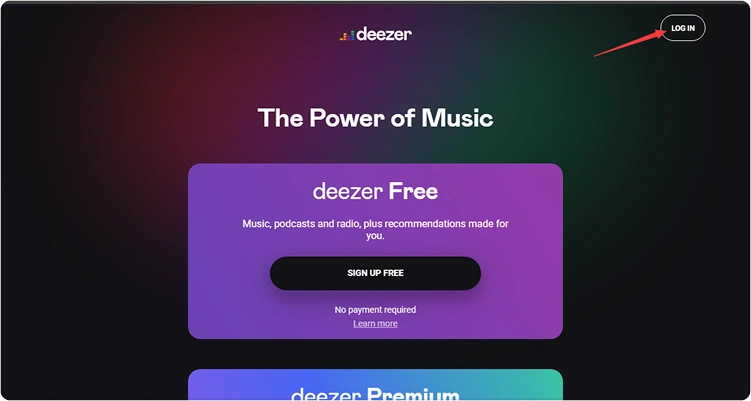
Schritt 1. Melden Sie sich bei Deezer Music an.
TunesFun Der Deezer Music Converter integriert den offiziellen Deezer-Webplayer. Bitte melden Sie sich zuerst in Ihrem Deezer-Konto an, um Ihre Musikbibliothek zu durchsuchen.
Schritt 2. Fügen Sie dem Programm Musik hinzu
Nachdem Sie sich in Ihrem Musikkonto angemeldet haben, können Sie Ihre Musikbibliothek durchsuchen und die gewünschten Inhalte zum Konvertieren auswählen. Klicken Sie neben einem Titel oder einer Playlist auf „Zur Konvertierung hinzufügen“, um die ausgewählte Musik zur Konvertierungsliste hinzuzufügen. Alternativ können Sie Titel, Playlists oder andere unterstützte Inhalte per Drag & Drop auf das schwebende „+“-Symbol rechts in der Benutzeroberfläche ziehen.
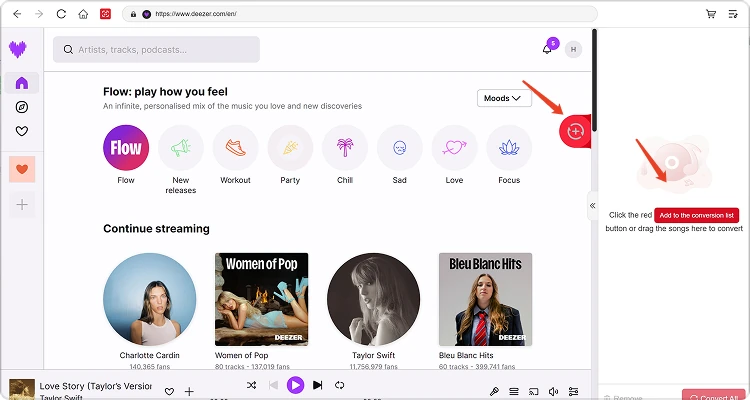
Inhaltsverfügbarkeit: Die Verfügbarkeit eines Liedes oder Albums hängt ausschließlich vom Abonnementstatus und den regionalen Berechtigungen des verwendeten Kontos ab.
Schritt 3. Wählen Sie das Ausgabeformat
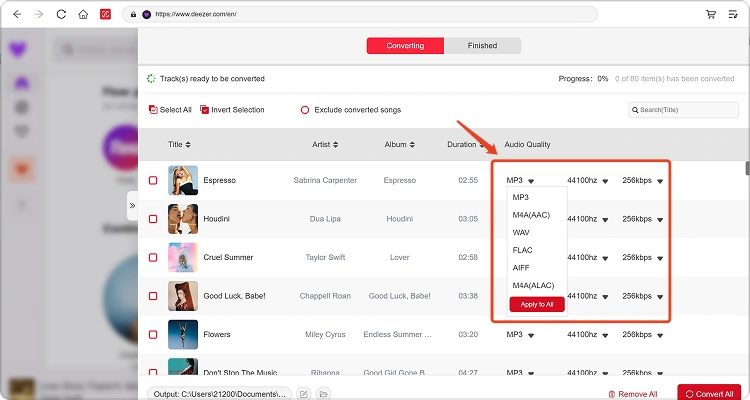
Nachdem Sie Musik zur Konvertierungsliste hinzugefügt und Ihre bevorzugten Ausgabeeinstellungen konfiguriert haben, wählen Sie Ihr bevorzugtes Ausgabeformat aus den verfügbaren Optionen. Bei Bedarf können Sie auch den Ausgabeordner und weitere Audioparameter anpassen.
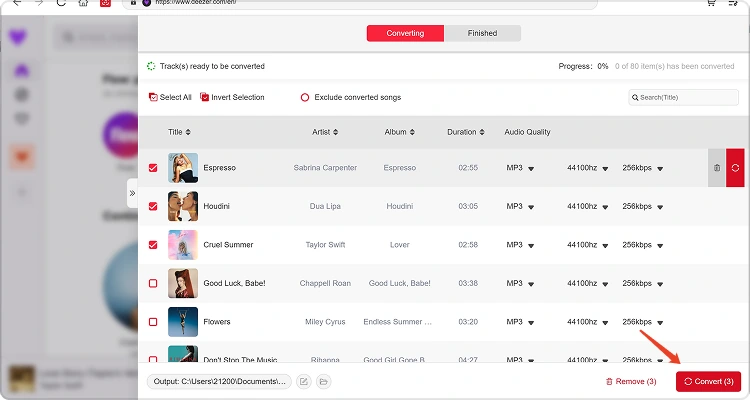
Schritt 4. Musikkonvertierung starten
Sobald alles vorbereitet ist, klicken Sie neben dem jeweiligen Titel auf „Jetzt konvertieren“ oder auf „Alle konvertieren“, um alle ausgewählten Musiktitel gleichzeitig zu verarbeiten. Der Konvertierungsfortschritt wird während des Vorgangs angezeigt. Bitte warten Sie, bis die ausgewählten Aufgaben abgeschlossen sind.
Schritt 5. Konvertierte Musik überprüfen
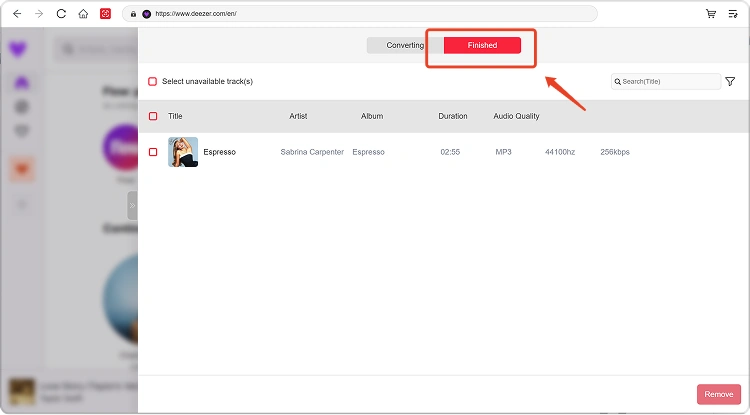
Nach Abschluss der Konvertierung finden Sie Ihre konvertierten Dateien im Bereich „Lokale Bibliothek“. Klicken Sie auf „Ausgabedatei anzeigen“, um den Ordner zu öffnen, in dem die konvertierte Musik gespeichert ist. Anschließend können Sie die Dateien nach Bedarf abspielen, verwalten oder übertragen.
Teil 3. Was tun, wenn der Download fehlschlägt?
Sollten beim Herunterladen oder Konvertieren von Musik Probleme auftreten, versuchen Sie Folgendes:
- Vergewissern Sie sich, dass Sie bei der ausgewählten Musikplattform angemeldet sind.
- Überprüfen Sie Ihre Internetverbindung und versuchen Sie es erneut.
- Wiederaufnahme TunesFun Verwenden Sie einen beliebigen Musikkonverter und versuchen Sie den Download erneut.
- Stellen Sie sicher, dass Sie die neueste Version der Software verwenden.
Sollte das Problem weiterhin bestehen, senden Sie bitte die Software-Protokolldatei ein:
- Klicken Sie auf das Menü oben rechts im Programm und wählen Sie „Feedback senden“.
- Beschreiben Sie das aufgetretene Problem kurz im Textfeld.
- Bitte aktivieren Sie abschließend das Kontrollkästchen „Protokolldatei anhängen“, bevor Sie das Formular absenden.
Teil 4. So legen Sie Ausgabeeinstellungen und Audioparameter fest
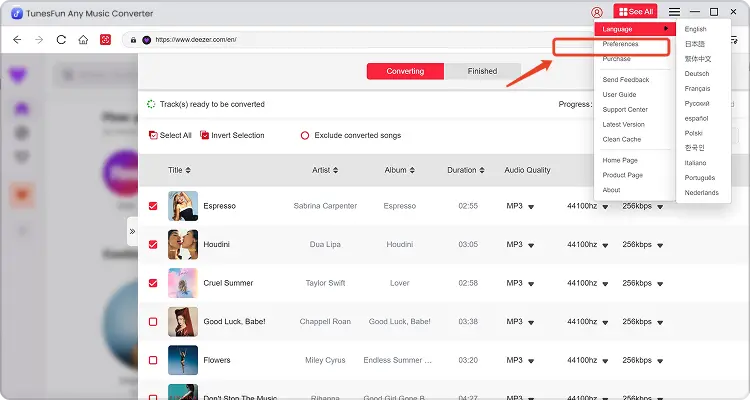
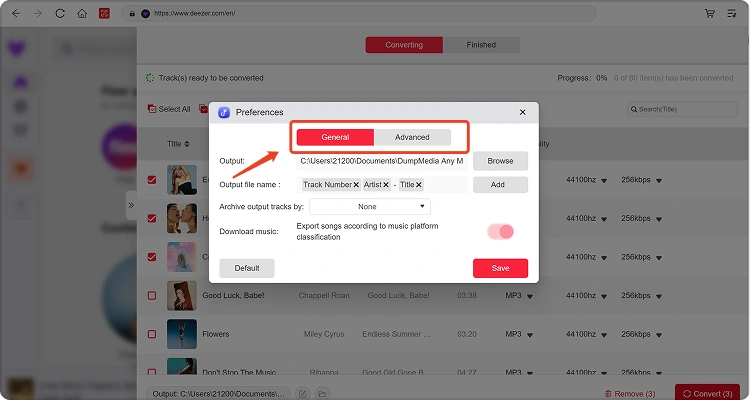
TunesFun Any Music Converter ermöglicht es Ihnen, Download-Einstellungen und Audioparameter anzupassen, um den Konvertierungsprozess und die Ausgabequalität zu steuern. Sie können diese Einstellungen direkt in der Konvertierungsliste vor dem Start einer Konvertierung anpassen oder unter Menü > Einstellungen Ihre bevorzugten Einstellungen im Voraus festlegen.
Sprache
Wählen Sie Ihre bevorzugte Sprache für die Softwareoberfläche.
Allgemeine Einstellungen
- Erscheinungsbild — Passen Sie das Erscheinungsbild der Softwareoberfläche an.
- Ausgabeverzeichnis — Wählen Sie aus, wo Ihre konvertierten Dateien gespeichert werden sollen.
- Automatisches Namensmuster – Passen Sie das Namensformat für konvertierte Dateien an.
- Archivieren nach — Wählen Sie aus, wie konvertierte Musikdateien organisiert werden.
- Nach der Konvertierung — Wählen Sie aus, was nach Abschluss der Konvertierung geschehen soll.
- Musik speichern — Speichern konvertierter Musikdateien aktivieren oder deaktivieren.
- Songtexte – Speichern von Songtexten zusammen mit der konvertierten Musik aktivieren oder deaktivieren.
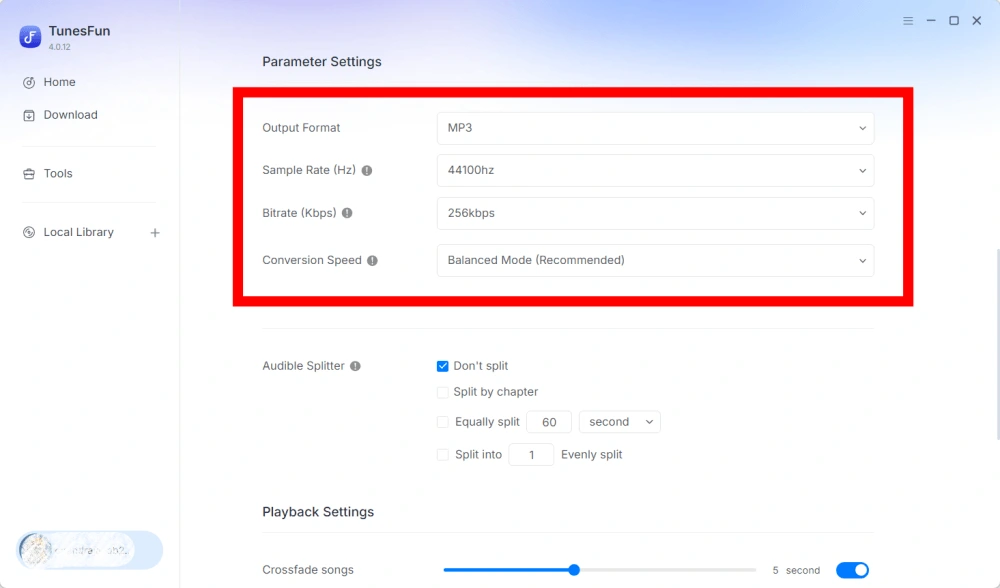
Parametereinstellungen
- Ausgabeformat — Wählen Sie das gewünschte Audioausgabeformat.
- Abtastrate (Hz) — Die Audio-Abtastrate einstellen.
- Bitrate (Kbps) — Passen Sie die Audio-Bitrate an, um die Ausgabequalität zu steuern.
- Konversionsgeschwindigkeit — Passen Sie die Konversionsgeschwindigkeit Ihren Bedürfnissen an.
- Audible Splitter – Audible-Hörbücher in kleinere Abschnitte aufteilen.
Wiedergabeeinstellungen
Überblenden von Liedern – Ermöglicht einen sanften Übergang zwischen den Liedern während der Wiedergabe.
Netzwerkeinstellungen
- Gleichzeitige Downloads — Legen Sie die Anzahl der gleichzeitig herunterzuladenden Musikdateien fest.
- Proxy — Konfigurieren Sie die Proxy-Einstellungen für Netzwerkverbindungen.
Andere Einstellungen
Pop-ups — Pop-up-Benachrichtigungen aktivieren oder deaktivieren.
Teil 5. Wie Sie Ihre TunesFun Konto
TunesFun Any Music Converter ermöglicht es Ihnen, Ihr Konto direkt innerhalb der Software zu verwalten.
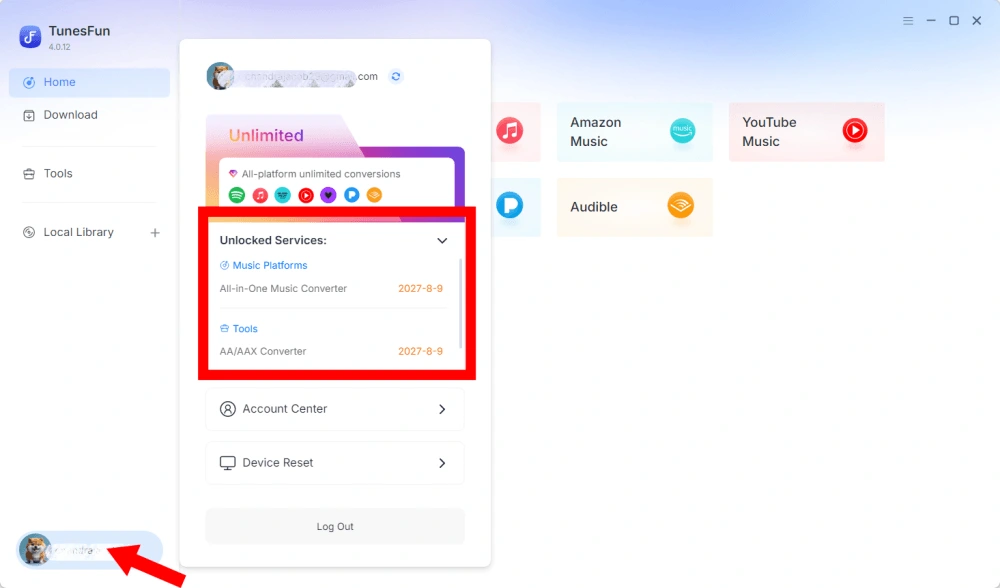
Freigeschaltete Dienste anzeigen
Gehen Sie zum Bereich „Konto“, um die Dienste und Funktionen anzuzeigen, die derzeit für Ihr Konto freigeschaltet sind. TunesFun Konto. Hier können Sie Ihren Kontostatus und die unter Ihrer Lizenz verfügbaren Produkte oder Dienstleistungen überprüfen.
Zugriff auf das Kontozentrum
Klicken Sie auf das Profilsymbol > „Kontocenter“, um dorthin zu gelangen. TunesFun Im Center können Sie Ihr Konto und zugehörige Informationen verwalten.
- Persönliche Informationen — Aktualisieren Sie Ihren Benutzernamen und klicken Sie auf „Bearbeiten“, um Ihr Avatarbild zu ändern.
- Konto löschen – Sobald Ihr Konto gelöscht ist, werden Ihr Konto und der zugehörige Lizenzschlüssel sofort deaktiviert und können nicht mehr verwendet werden. Bitte stellen Sie vor dem Löschen Ihres Kontos sicher, dass Sie keine aktiven Abonnements mehr haben.
- Abonnement – Sehen und verwalten Sie Ihre aktuellen Abonnements. Wenn Sie ein Abonnement kündigen möchten, klicken Sie einfach auf „Abonnement verwalten“, um es zu pausieren. Falls Sie nicht kündigen können, wenden Sie sich bitte an den Kundenservice ([E-Mail geschützt] ).
- Geräte verwalten – Wenn Sie zu einem anderen Gerät wechseln und dieses verwenden möchten TunesFun Auf dem neuen Gerät können Sie die Aufgabe problemlos erledigen. Sollten Sie das Gerät nicht zurücksetzen können, wenden Sie sich bitte an den Kundendienst.
- Rechnung – Alle Bestelldetails sind hier einsehbar. Sollten Sie die Rechnung nicht einsehen können, wenden Sie sich bitte an unseren Kundenservice.
- Passwort ändern – Legen Sie ein neues Passwort fest. Wenn Sie Ihr aktuelles Passwort vergessen haben, klicken Sie auf „Passwort vergessen“. Folgen Sie den Anweisungen auf dem Bildschirm, um Ihr Passwort zurückzusetzen.