 Pandora Music Converter

 Mac
Mac Windows
Part 1. Get Started with TunesFun Pandora Music Converter
Step 1. Install TunesFun Pandora Music Converter
Download and install the latest version of TunesFun Pandora Music Converter on your computer. Once the installation is complete, launch the program to get started.
Step 2. Activate TunesFun Pandora Music Converter
After launching the software, you can choose to continue with the free trial or activate the full version with a license key.
For Free Trial Users: If you do not have a license key, you can directly launch the program and explore its available features. With the free trial version, you can only convert 3 full songs from Pandora Music. To convert more tracks without Apple limitations, you will need to buy the license. (Go to the TunesFun Online Store. You can contact our customer support team to check the latest promotions and special offers.)
For Paid Users: If you have already purchased a license, activate the software to unlock the full version. Click the profile icon in the bottom-left corner. Then choose "Log in with License". Enter the email address associated with your purchase and your registration code/license key. Click Sign in to complete the activation. Once activated, you can access the features included with your license.
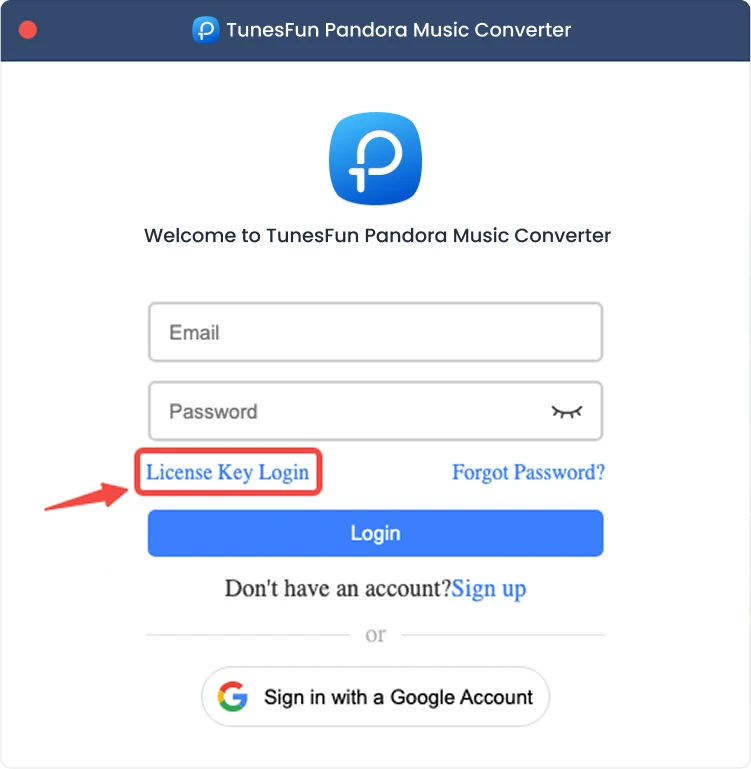
Note: Make sure you enter the same email address associated with your purchase and use the correct registration code. An active Internet connection may be required for verification.
Part 2. How to Add Music for Conversion
Step 1. Sign In to Pandora Music
TunesFun Pandora Music Converter integrates the official Pandora Music web player. Please sign in to your Pandora Music account first to browse your music library.

Step 2. Add Music to the Program
After signing in to your music account, you can browse the music library and select the content you want to convert. Click "Add to Convert" next to a track or playlist to add the selected music to the conversion list. You can also drag and drop songs, playlists, or other supported content onto the floating "+" icon on the right side of the interface.
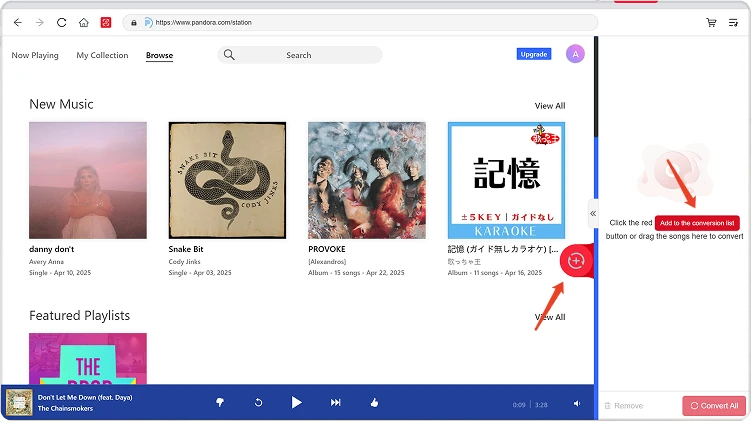
Content Availability: The availability of any song or album depends entirely on the subscription status and regional permissions of the account you use.
Step 3. Select the Output Format
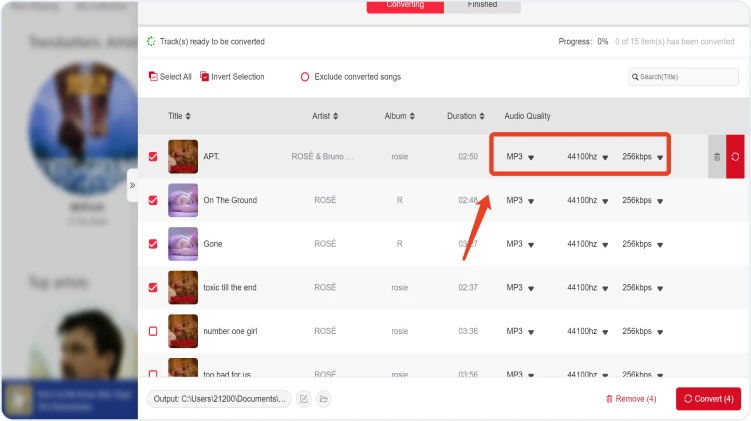
After adding music to the conversion list and configuring your preferred output settings, select your preferred output format from the available options. You can also adjust the output folder and other audio parameters if needed.
Step 4. Start Converting Music
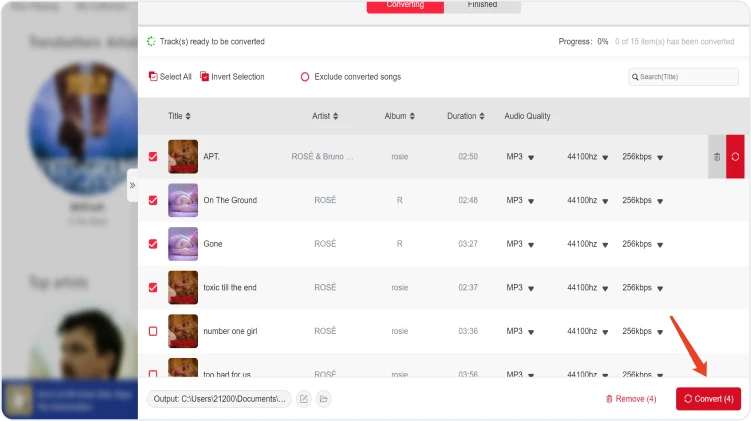
Once everything is ready, click the Convert Now button next to an individual item or click Convert All to process all selected music at once. The conversion progress will be displayed during the process. Please wait until the selected tasks are completed.
Step 5. Check Converted Music
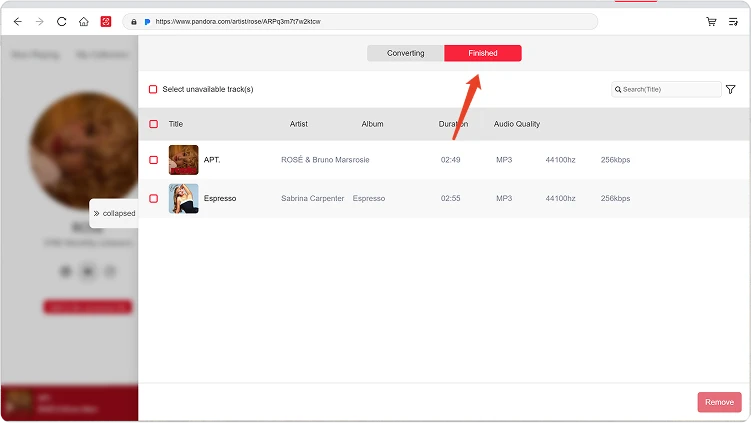
After the conversion is complete, go to the Local Library section to view your converted files. Click View Output File to open the folder where the converted music is saved. You can then play, manage, or transfer the files as needed.
Part 3. What Should I Do if the Download Fails
If you encounter an issue while downloading or converting music, try the following:
- Make sure you are signed in to the selected music platform.
- Check your Internet connection and try again.
- Restart TunesFun Any Music Converter and retry the download.
- Make sure you are using the latest version of the software.
If the issue persists, please submit the software log file:
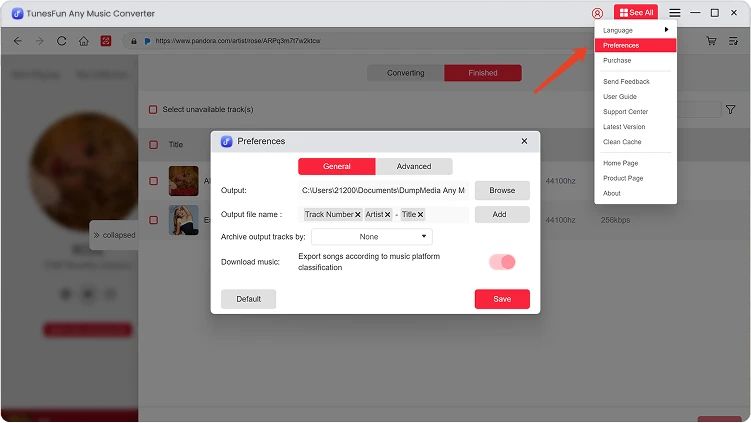
- Click the menu in the top right of the program and choose "Send feedback."
- Briefly describe the problem you encountered in the text box.
- Finally, please check the "Attach the log file" box before submitting.
Part 4. How to Preset Output Settings and Audio Parameters
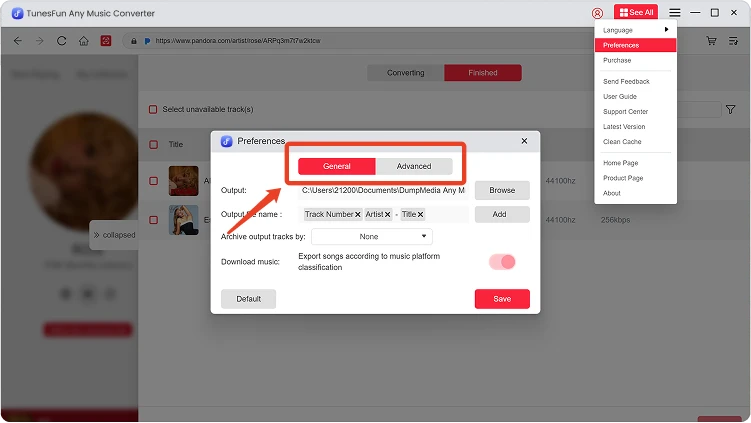
TunesFun Any Music Converter allows you to customize download settings and audio parameters to control the conversion process and output quality. You can adjust these settings directly from the conversion list before starting a conversion, or go to Menu > Preferences to preset your preferred settings in advance.
Language
Select your preferred language for the software interface.
General Settings
- Appearance — Customize the appearance of the software interface.
- Output Folder — Select where your converted files will be saved.
- Auto-naming Pattern — Customize the naming format for converted files.
- Archive By — Choose how converted music files are organized.
- After Conversion — Choose what happens after the conversion is complete.
- Save Music — Enable or disable saving converted music files.
- Lyrics — Enable or disable saving lyrics with the converted music.
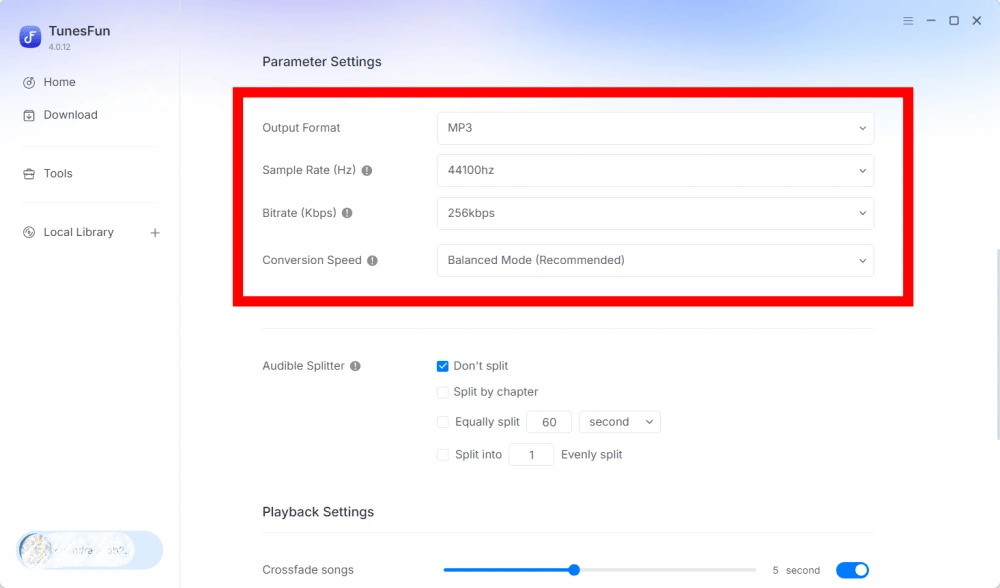
Parameter Settings
- Output Format — Select the desired audio output format.
- Sample Rate (Hz) — Set the audio sample rate.
- Bitrate (Kbps) — Adjust the audio bitrate to control output quality.
- Conversion Speed — Adjust the conversion speed according to your needs.
- Audible Splitter — Split Audible audiobooks into smaller sections.
Playback Settings
Crossfade Songs — Enable a smooth transition between songs during playback.
Network Settings
- Simultaneous Downloads — Set the number of music files to download simultaneously.
- Proxy — Configure proxy settings for network connections.
Other Settings
Pop-ups — Enable or disable pop-up notifications.
Part 5. How to Manage Your TunesFun Account
TunesFun Any Music Converter allows you to manage your account directly within the software.
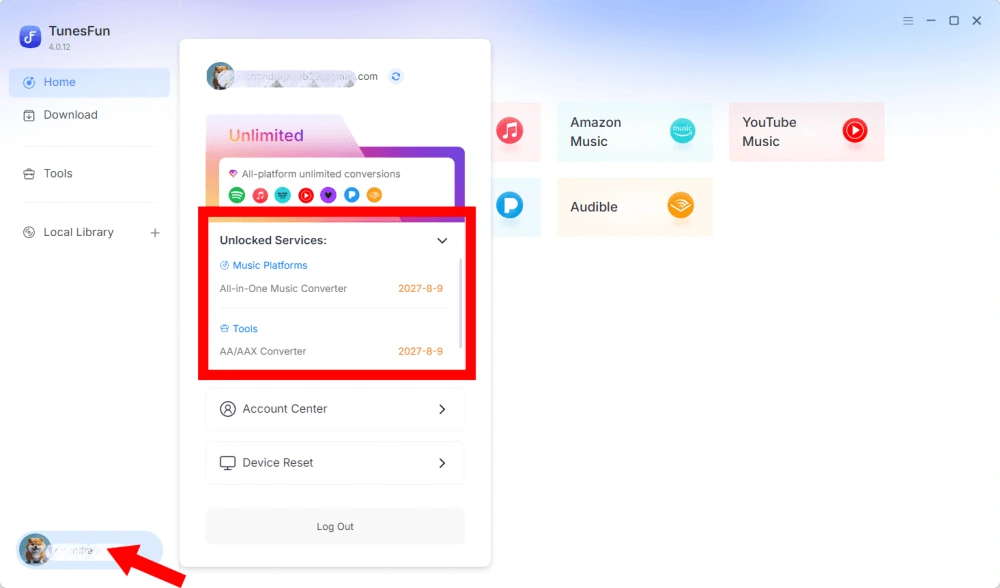
View Unlocked Services
Go to the Account section to view the services and features currently unlocked with your TunesFun account. This allows you to check your account status and the products or services available under your license.
Access Account Center
Click the profile icon > "Account Center" to get into the TunesFun Center, where you can manage your account and related information.
- Personal information — Update your username and click "edit" to change your avatar photo.
- Delete Account — Once your account is deleted, your account and associated license key will be immediately deactivated and can no longer be used. Before deleting your account, please make sure you do not have any active subscriptions.
- Subscription — View and manage your current subscriptions. If you want to cancel a subscription, just click "Manage subscription" to pause it. If you are unable to cancel, please contact customer service ([email protected]).
- Manage devices — If you are switching to another device and want to use TunesFun on the new device, you can easily complete the task. If you are unable to reset, please contact customer service.
- Billing — All the order details can be found. If you are unable to check the bill, please contact customer service.
- Change password — Set the new password you like. If you forgot your current password, click "Forgot". Follow the on-screen instructions to reset your password.